Chapter 345 min read
Discount rulesv1.0.15+
Set up discounts that apply under conditions in Activities, learn how several discounts multiply from top to bottom, when "Stop matching lower rules" stops the multiplying, and how discounts apply to API usage and package prices.
Discount rules let matching API calls or package purchases cost less. Each rule has a discount percentage; for example, a discount of 10 charges 90% of the base price. You can have several rules. CCHP checks them from top to bottom and multiplies the rules that match.
You set up discount rules on the Discounts tab of Administration → Operations Settings → Activities. Only platform super admins can see this page.
Before you begin#
- Discounts apply to two kinds of amounts: the pay-as-you-go cost of API calls, and the purchase price of a package or its renewal at the current price. Wallet top-ups are not affected by discount rules; for discounts built into top-up tiers, see Payment channels.
- Effective scope in the upper-right corner of the page defaults to Global, so rules apply to the whole platform. To apply rules to only one organization or team, see Set rules for an organization or team.
- Creating, editing, deleting, switching on or off, and reordering rules are saved right away.
Create a discount rule#
Open Discount rules#
Go to Administration → Operations Settings, select Activities on the left, and switch to Discounts at the top. Above the list you see how many rules are enabled and how they combine. Click New discount.
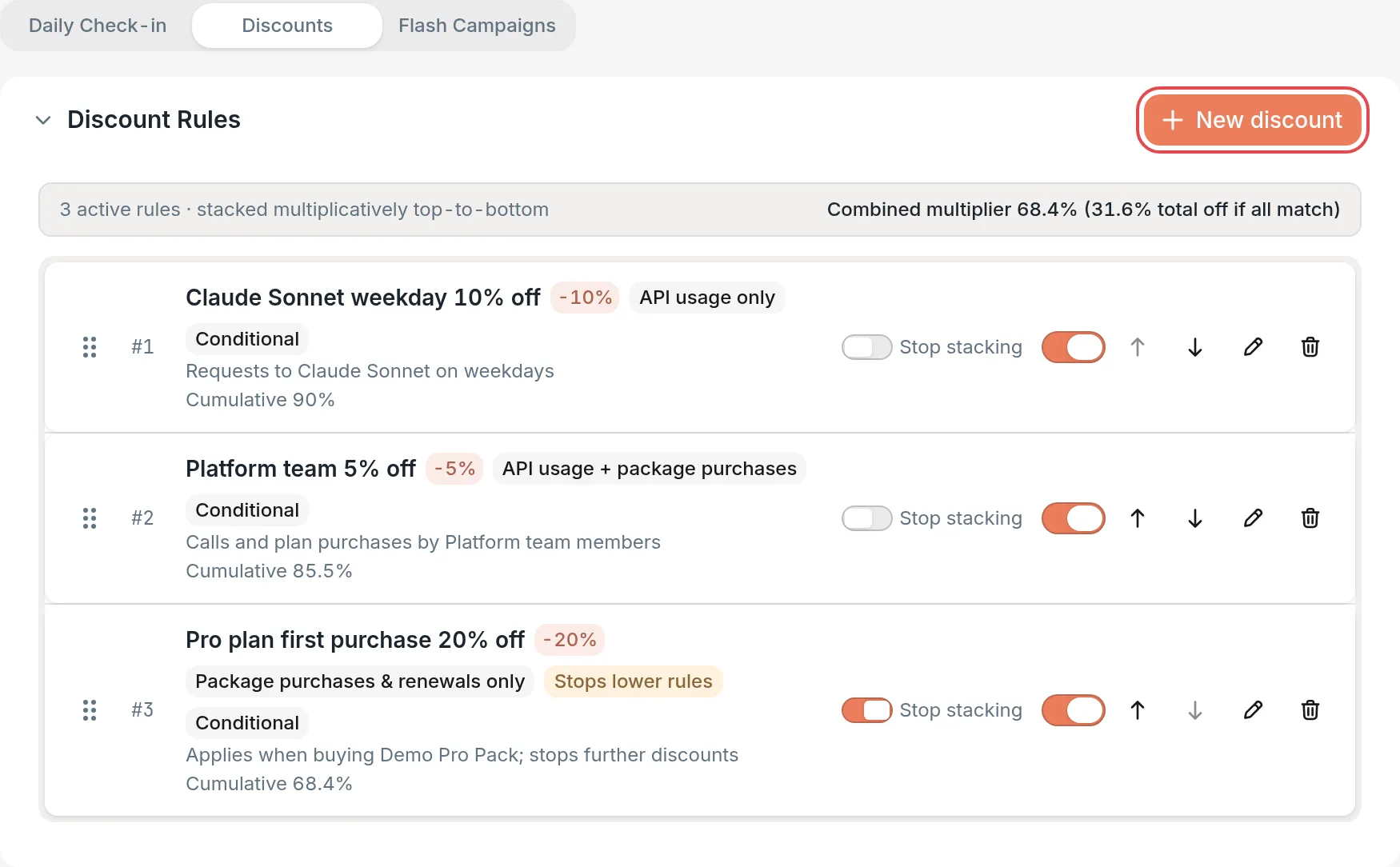 Discount rules: how rules combine, rule list, and New discount
 CCHP
Fill in the discount#
Set the match conditions#
Match conditions defaults to Unrestricted (global): the rule applies to every call or purchase covered by Applies to. Choose Conditional match to limit when the rule matches; see Write conditions.
Save#
Click Save.
Result: the page shows Discount rule created, and the rule appears in the list with its discount, what it applies to, and the Cumulative percentage.
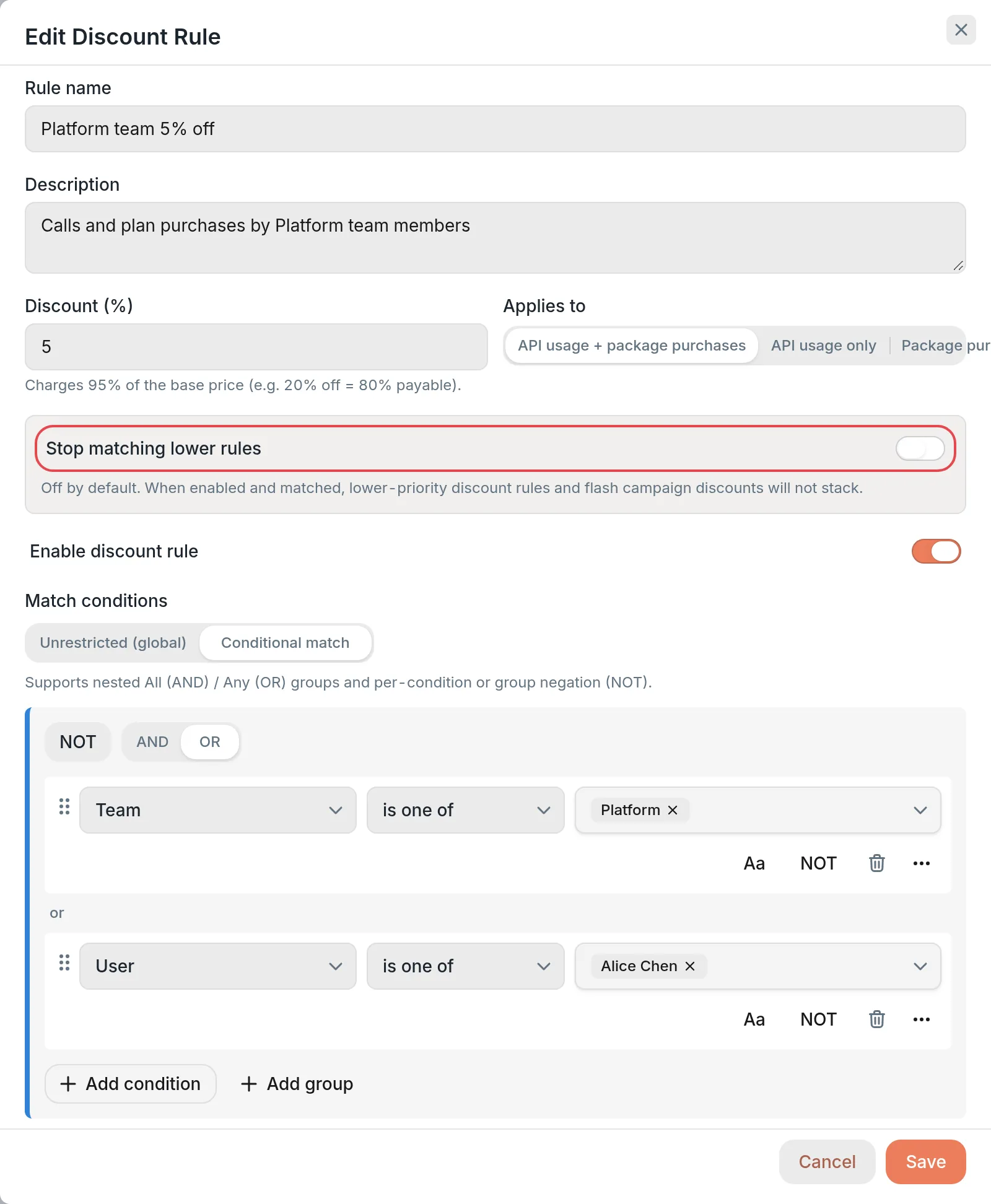 Edit Discount Rule: discount, Stop matching lower rules, and match conditionsCCHP
Write conditions#
A condition has one or more rows. In each row you pick a field, a relation, and values, for example Team is one of Platform. You can use these fields:
To combine rows:
- Above a group, choose AND (all must match) or OR (any may match).
- Click Add condition to add a row, or Add group to nest a group inside the current one; each group has its own AND or OR.
- Click NOT on a row or group to negate it.
A rule whose conditions use Provider group, Provider, Provider key, or any model field applies only to API calls, never to package purchases: no request has been routed yet when a package is bought, so these fields can’t be checked.
How several rules combine#
- CCHP checks each enabled rule from top to bottom and multiplies the payable percentages of the rules that match. For example, two matching rules with discounts of
10and5charge 90% × 95% = 85.5% of the base price. - The combined multiplier above the list is the percentage if every enabled rule matches; Cumulative under each rule is the percentage up to and including that rule.
- Discounts from a running flash campaign come after all regular rules and keep multiplying.
- After multiplying, the price is at least one billing unit, so combined discounts never make something free.
To reorder rules, drag the handle at the start of a row, or click the up and down arrows in the row. The order only changes the result when a rule has Stop matching lower rules turned on.
Stop matching lower rules#
When a rule with Stop matching lower rules matches, the rules below it and flash campaign discounts are not used; rules above it that already matched still count. Such a rule shows the Stops lower rules tag, and the Stop stacking switch in the row turns it on or off directly.
Example: create a rule with a discount of 20 for buying Demo Pro Pack, turn on Stop matching lower rules, and move it to the top of the list. Users who buy that package get only this 20% off, without any other general or campaign discount.
Set rules for an organization or team#
- Click Effective scope in the upper-right corner, choose Organization or Team, pick the organization or team, and click Apply.
- A notice above the list says the rules are inherited. At this point they match the parent’s rules.
- Create, edit, or delete any rule in this scope.
Result: the organization or team gets its own rule list; its members’ discounts follow this list and no longer follow the parent’s rules. To go back to the parent’s rules, click Restore inherited in this scope.
Prices users see#
- API calls: the discount is applied at settlement, and the cost in Request logs is the discounted amount.
- Packages: prices in the wallet’s Buy package window already include discounts. For the order of dedicated prices, team discounts, and discount rules, see Packages.
Frequently asked questions#
Why doesn’t my discount apply?#
Check in order:
- Whether Enable discount rule is on, and whether Applies to covers this kind of transaction.
- Whether the conditions match. Rules whose conditions use provider groups, providers, keys, or model fields don’t apply to package purchases.
- Whether a rule above it with Stop matching lower rules matched first.
- Whether the user’s organization or team has its own rule list.
Does deleting a rule change costs that were already settled?#
No. Deleting only affects later requests and purchases; settled amounts stay the same.