Chapter 1212 min read
Model management and pricing
View model price statuses, reference prices, folded aliases, and peak/off-peak billing in Model Management, price models through Pricing source or organization copies, and check unpriced models in price table import results.
Model Management lists every model the current organization can use, with its price. Open it from Model Management in the Org management group of the sidebar. By default the gateway rejects requests for a model without a price. This page explains how to spot these models, how to give them a price, and how reference prices, folded aliases, release-date sorting, and peak/off-peak billing work.
Before you begin#
- This page involves two kinds of administrators:
- System administrator: the account created during first-run setup. It holds global model write permission and can choose prices for global cloud models in Pricing source or directly edit global model prices and peak/off-peak schedules.
- Organization administrator: can add models for this organization in Model Management, and can also click a global model’s No price or Reference price tag or edit button to set a price for this organization v1.0.15+. When an organization administrator edits a global model’s price or fields, CCHP automatically creates a same-named organization copy that applies only to this organization, leaving the global model and other organizations unaffected.
- By source, models tagged Cloud come from the cloud price table, and their prices update when the price table syncs; models tagged Local were added by an administrator, who also entered their prices; organization copies created when an organization administrator edits a global cloud model carry Catalog / Added by this organization ownership. When adding a local model, you can also copy parameters and base prices directly from the cloud price table v1.0.12+.
- By ownership, models are Global models or Added by this organization. Global models are available to every organization, and their prices are maintained by the cloud price table and the system administrator. When an organization has a priced same-named organization model, routing and billing in that organization prefer the organization copy.
- With the default setting (
billing.unknown_model.allow_request, Allow unpriced models under Administration → System Management → Routing → Routing Billing, left off), a model without a price can’t be requested: the request is rejected with403at the hold.
Reference price v1.0.15+#
For some models the vendor has not published a price, for example some MiniMax and DeepSeek models. For these models the cloud price table picks one seller’s price as the reference price and records where that price comes from:
- published by the seller’s own API: the price that the seller’s own API returns.
- as listed on OpenRouter: this seller’s price as listed on the OpenRouter API.
- from a third-party price catalog: the price in a third-party price catalog.
For how the reference price is chosen among sellers, see the “Default prices” section of Data sources and acknowledgements.
CCHP bills these models at the reference price by default, so they can be requested as usual. A system administrator can switch to another cloud provider’s price in Pricing source, or take over manually and set a price; an organization administrator can also click the tag or edit the model to create an organization-scoped copy with its own price.
A model with neither an official nor a reference price in the price table has no price after import and shows No price in the model list.
Price status of a model v1.0.15+#
A tag under the model name shows its price status:
Hover over the tag to see the reason and what you can do: when an organization administrator hovers over a global model’s price status tag, the tooltip says “Click to set a price for this organization. It applies only to this organization.” The tag is unclickable only when the current user has no model write permission at all.
When an organization administrator saves custom prices or field changes on a global model, CCHP switches seamlessly:
- Copies a same-named organization model with the new price, while the global model stays unchanged and continues syncing with the cloud price table.
- Automatically repoints exact provider-key whitelist rules, exact provider-group rules, and organization aliases in this organization from the global model to the new copy, and registers the global model’s global aliases as organization aliases on the copy.
- Subsequent routing and billing in this organization resolve to the copy first, without affecting other organizations.
After an administrator takes over the price manually, switches to another cloud provider’s price, or creates a priced organization copy, the model no longer shows the Reference price tag.
 Model Management: the reference price tag and its hover text
 CCHP
Find models without a price v1.0.15+#
When there are enabled models without a price that the current user can handle, a notice appears below the filter bar, for example “Models without a price: 1. With the default settings, requests for them are rejected.” What it counts depends on the user’s permissions:
- System administrator: every enabled model without a price (including both global and organization-added models).
- Organization administrator: enabled models without a price among the models the organization added; the notice reads “Models added by this organization without a price: N. With the default settings, requests for them are rejected.” Global unpriced models are not counted in this banner, though organization administrators can still filter by ownership to global models and click the No price tag to price them for this organization.
The notice counts only enabled models, and its number doesn’t change with the current filters; it isn’t shown when there are no such models.
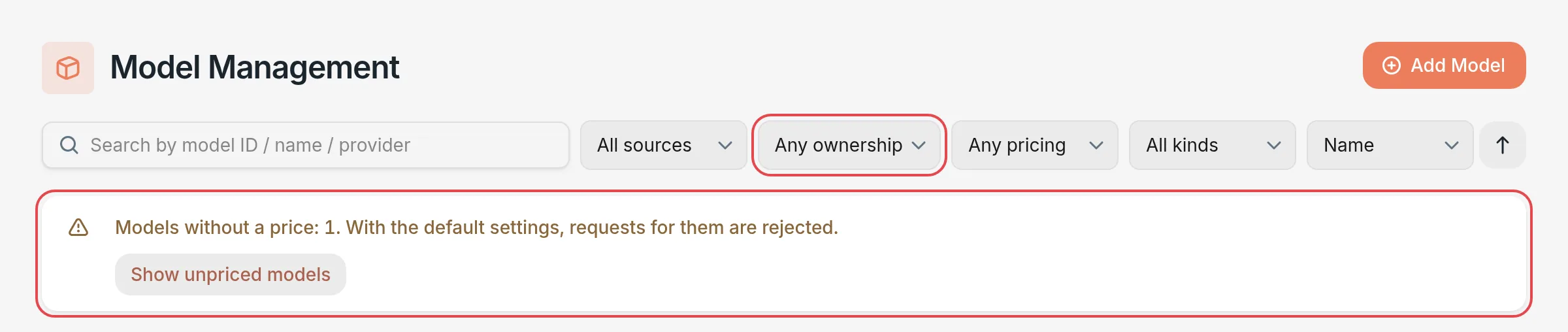 Model Management: the unpriced notice and the Ownership filterCCHP
Filter to unpriced models#
Click Show unpriced models on the notice.
Result: the Pricing filter changes to Unpriced (for an organization administrator, the list is also filtered to Added by this organization), and only models without a price remain.
Give the models a price#
The button on the notice changes to one of these and handles the first model in the list:
- Choose a price: the first model is a cloud model; click to open its Pricing source.
- Set price: the first model is a local model; click to open its price editing.
For the other models, click their own No price tag.
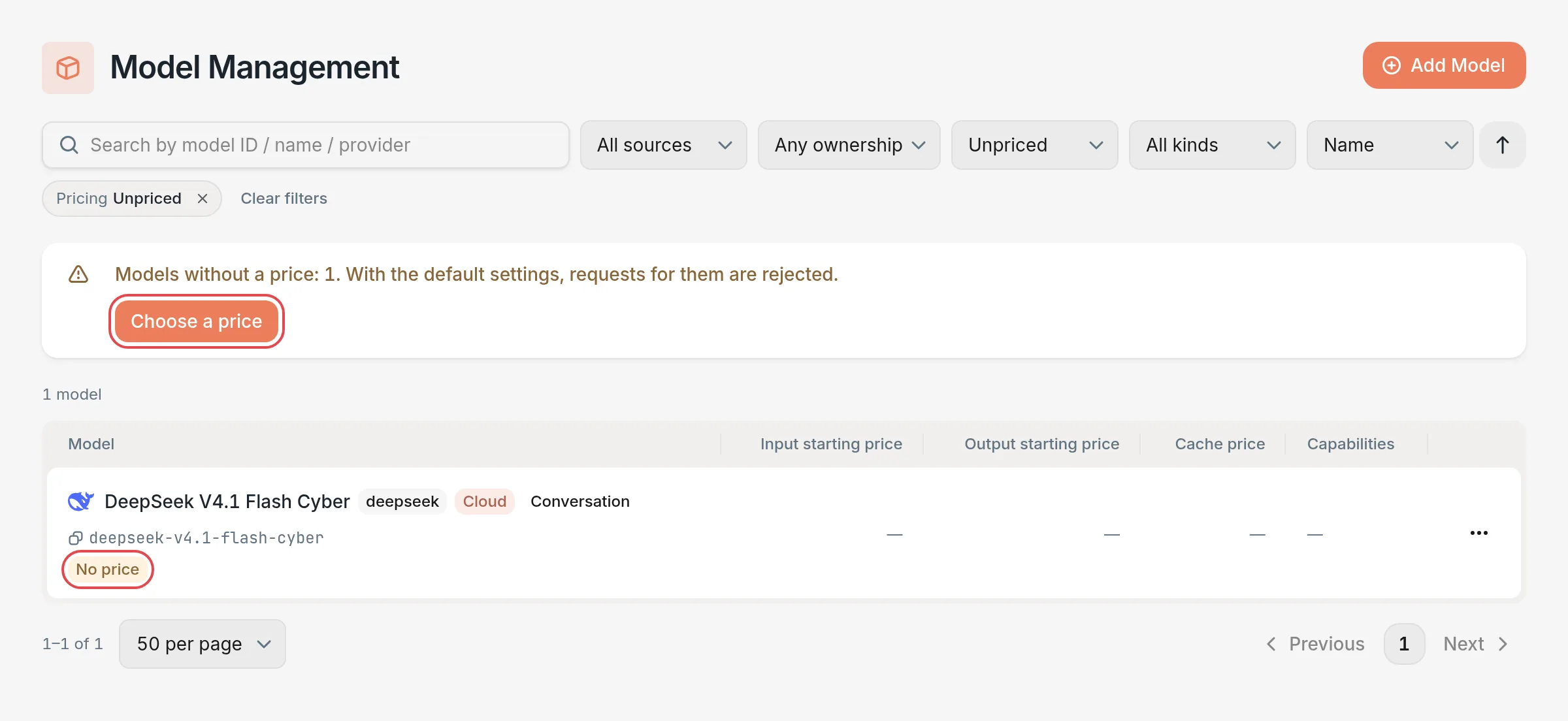 Model Management: the list after Show unpriced models, with Choose a priceCCHP
Check the result#
Once a model has a price, it drops out of the filtered list and the number on the notice goes down; after every model has a price, the notice disappears.
Filter by ownership and default sorting v1.0.15+#
- Filter by ownership: The Ownership dropdown in the filter bar offers Added by this organization and Global models; the default is Any ownership. The selected filters are kept in the page address, so you can bookmark the view or send it to another administrator.
- Default sorting by release date: Model Management sorts by Release date descending by default, matching the public model catalog—newly released models come first, deprecated models come last, models without a release date come after dated models, and ties are sorted by name. You can also sort by Name, Input starting price, Output starting price, or Provider in the sort menu. The management API
GET /api/account/orgs/{orgId}/modelssupportssort=released_descandsort=released_asc.
Folded aliases and rolling aliases v1.0.15+#
The cloud price table consolidates unofficial derivative names and rolling aliases under each official model entry. In the model row they are collapsed into a N aliases toggle that you can click to expand.
- Category tags: Each alias is tagged by its source or kind: Community variant, Quantized, Abliterated, Reseller name, Tier alias, Regional endpoint, Batch, Free, Fast, or Other.
- Model name sent upstream: When a request matches an alias tagged Quantized, Abliterated, Reseller name, or Community variant (such as
deepseek-v4.1-flash-cyber), the gateway forwards that alias verbatim if the selected provider key’s upstream offers it; otherwise it rewrites the model name to the canonical official name. - Rolling aliases: Rolling names such as
claude-sonnet-latestdisplay Rolling alias → target model next to the entry, use the target model’s price, and automatically follow daily cloud price table target updates. - Tier aliases: Aliases tagged Tier alias can bind to a specific pricing tier; requests route and bill via that tier first and fall back to the primary model with payload rewriting according to configured rules when that tier is unavailable.
Pricing source v1.0.15+#
Pricing source decides which price a cloud model is billed at, maintained by system administrators on global cloud models. To open it:
- Click the Pricing source icon button at the end of the model row. When the column is too narrow, it is in the More actions (⋯) menu at the end of the row.
- Click the Reference price or No price tag of a cloud model.
The dialog is titled Pricing source · model name, and its content depends on the model’s price status:
- A model billed at a reference price: the top of the dialog names the seller and where the price comes from, for example “The vendor has not published a price for this model, so it is billed at the reference price from DeepInfra (published by the seller’s own API).” The reference price entry is tagged Reference price.
- A model with neither an official nor a reference price: the top says “This model has neither an official nor a reference price, so with the default settings its requests are rejected.”
You can configure the following options in the dialog:
- Restore default (official variant first): bill at the price table’s default price (without automatically selecting non-official cloud provider prices). For a model billed at a reference price, the default is the reference price.
- Manual override (cloud sync stops updating this model): from then on, administrators maintain this model’s price themselves, and price table syncs no longer overwrite it.
- Non-official cloud offerings & variant priority: tagged Cloud provider, showing input and output unit prices (with region and product tags). In addition to selecting a cloud provider price to override the official price, you can Disable or Enable individual non-official variants and use the up/down arrows to adjust routing and price selection priority.
- Normalize model name: enabled by default; automatically creates model redirects for non-official prefix/suffix variants and exposes only canonical official model names.
- Peak / off-peak billing mode: when the selected offer includes time-of-use pricing, switch between Follow schedule (peak & off-peak), Always bill at peak rate, and Always bill at off-peak rate; see Peak / off-peak billing and offer variants below.
Select your options and click Apply.
Result: the page shows Pricing source updated, and the model is billed at the selected price. After you choose a cloud provider price, the No price or Reference price tag no longer appears.
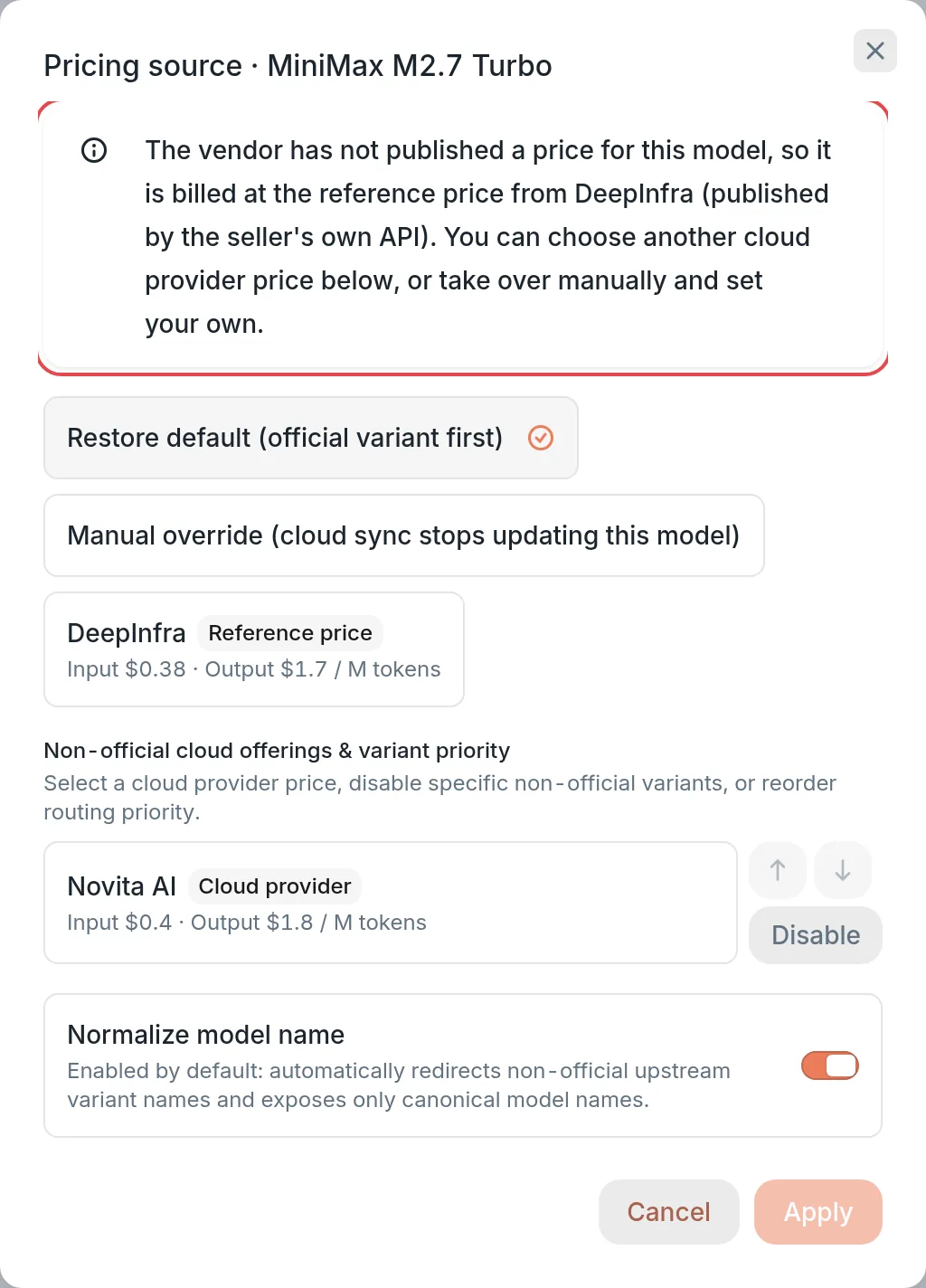 Pricing source: a model billed at a reference priceCCHP
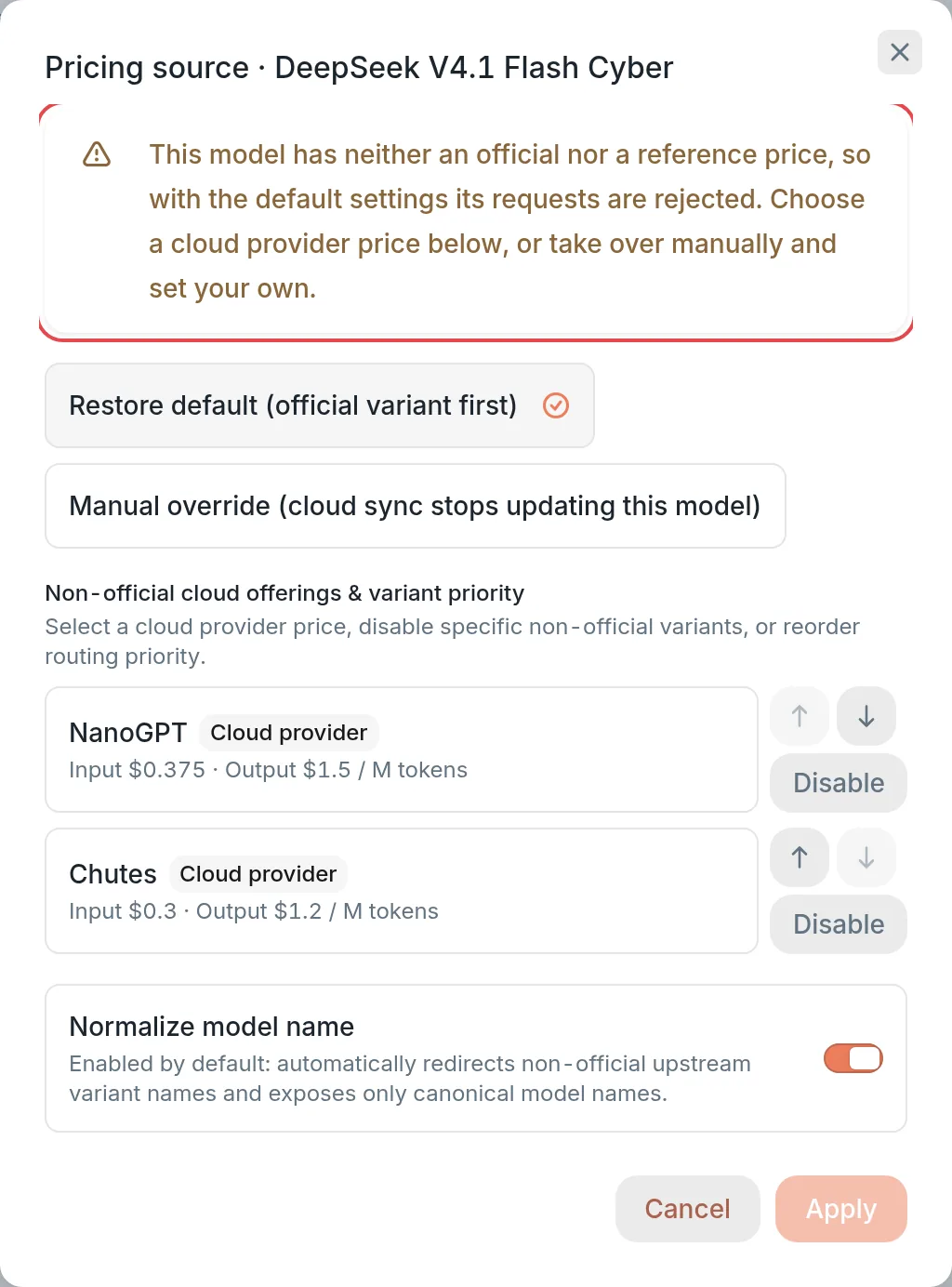 Pricing source: a model with neither an official nor a reference priceCCHP
Peak / off-peak billing and offer variants v1.0.15+#
For models that support time-of-use pricing (or custom local / organization models), administrators can fine-tune pricing strategies in the Pricing tiers and Peak / off-peak billing sections of the model edit dialog:
- Peak / off-peak billing mode:
- Follow schedule (peak & off-peak) (default): evaluates the configured IANA timezone, day-of-week filter, and peak/off-peak windows, supporting overnight windows (such as
22:00–08:00) and automatic DST transitions. - Always bill at peak rate: ignores off-peak discounts and bills at the peak multiplier at all hours.
- Always bill at off-peak rate: bills at the off-peak multiplier at all hours.
- Follow schedule (peak & off-peak) (default): evaluates the configured IANA timezone, day-of-week filter, and peak/off-peak windows, supporting overnight windows (such as
- Custom peak / off-peak windows: after enabling Peak / off-peak billing, configure the IANA timezone, Default rate outside windows, and off-peak multiplier (
× base price), and add one or more time windows (start/endHH:MM, rate, and days of the week). Pre-hold, settlement, and historical repricing all determine the period from the request start time, so a request crossing a window boundary keeps the same rate. - Custom pricing tiers and base pricing rails: on the Pricing tiers tab of the edit dialog, manage multiple tiers triggered by input/output token thresholds, request headers, or time windows, drag to adjust match priority (first match wins), and set multipliers for each billable item individually.
To see how users view peak/off-peak pricing and settlement list prices in Models & Pricing and request logs, see Provider groups and your final price.
Price table import result v1.0.15+#
After the system administrator uploads a price table, or clicks Sync now, in Administration → System Management → Pricing Table, Last import result lists the counts of that import, including:
- Priced at a reference price: the number of models billed at a reference price.
- No official or reference price: the number of models without a price after the import.
When the second count is above 0, a notice below says “N models have neither an official nor a reference price in the price table. With the default settings, requests for them are rejected.” Click Choose prices in Model management to open Model Management already filtered to Unpriced, then follow Find models without a price.
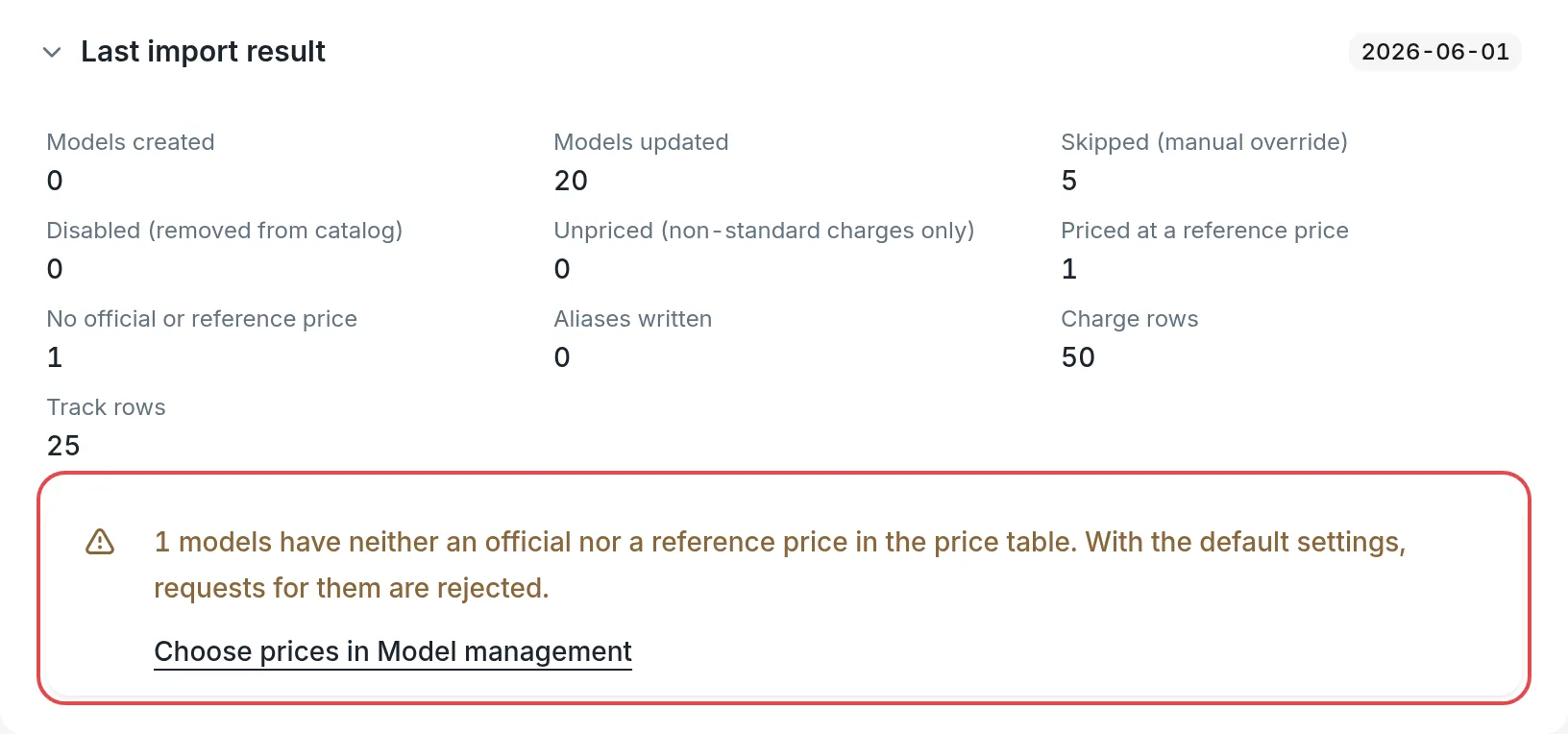 Pricing Table: the two counts and the notice in Last import resultCCHP
Frequently asked questions#
A model shows “No price” and requests return 403. What should I do?#
By default Allow unpriced models (billing.unknown_model.allow_request) under Administration → System Management → Routing → Routing Billing is off, so the gateway rejects models without a price. How to fix it:
- System administrator: choose a cloud provider price for a cloud model in Pricing source, or take over manually and set a price; for a local model, edit it directly and enter a price.
- Organization administrator: click the model’s No price tag or edit the model and enter a price to create a priced organization copy (or update the organization’s local model).
Why doesn’t an organization administrator see the unpriced notice for global models, and can they price global models?#
The unpriced notice is scoped by role: for an organization administrator, it counts only Added by this organization models so it isn’t cluttered by global catalog models the organization doesn’t use. However, if your organization needs to call an unpriced global model (or customize a global model’s price), an organization administrator can click its No price / Reference price tag or edit button directly and enter a price—CCHP automatically creates a same-named organization copy that applies only to this organization, while the original global model stays maintained by the cloud price table and system administrators.
I switched to a cloud provider price. Why did the “Reference price” tag disappear?#
The Reference price tag appears only while a model is billed at the price table’s reference price. After you switch to another cloud provider’s price, take over manually, or save an organization copy as an organization administrator, the model is billed at the new price, so the tag no longer appears. For a system administrator to return a global model to the reference price, choose Restore default (official variant first) in Pricing source.