Chapter 355 min read
Flash campaignsv1.0.15+
For a set period, add campaign discounts, temporarily list or unlist packages and top-up tiers, switch to different check-in settings, and notify users in the console and by marketing email before the campaign starts.
A flash campaign takes effect automatically at its start time and ends automatically at its end time; nobody has to switch it on or off. A campaign can include any of the following:
- Campaign discounts, which keep multiplying after the regular discount rules.
- Temporary listing and unlisting of packages.
- Temporarily hiding regular top-up tiers, and promotional tiers that appear only during the campaign.
- Daily check-in settings for the campaign period.
- An in-console notification and a marketing email before the campaign starts.
You set up flash campaigns on the Flash Campaigns tab of Administration → Operations Settings → Activities. Only platform super admins can see this page.
Before you begin#
- The start and end times use the campaign’s own Campaign time zone, which defaults to your browser’s time zone.
- To open a hidden package during the campaign, create it first in Packages and turn its Listed switch off.
- If the campaign notification should also send a marketing email, set up the mail server first; see System announcements.
Create a flash campaign#
Open Flash campaigns#
Go to Administration → Operations Settings, select Activities on the left, switch to Flash Campaigns at the top, and click New campaign.
Each campaign in the list shows its status (Active, Scheduled, Ended, or Disabled), time zone, start and end times, and what it contains, for example 1 discounts, List 1 packages, Check-in override, or Notify + email 60m before.
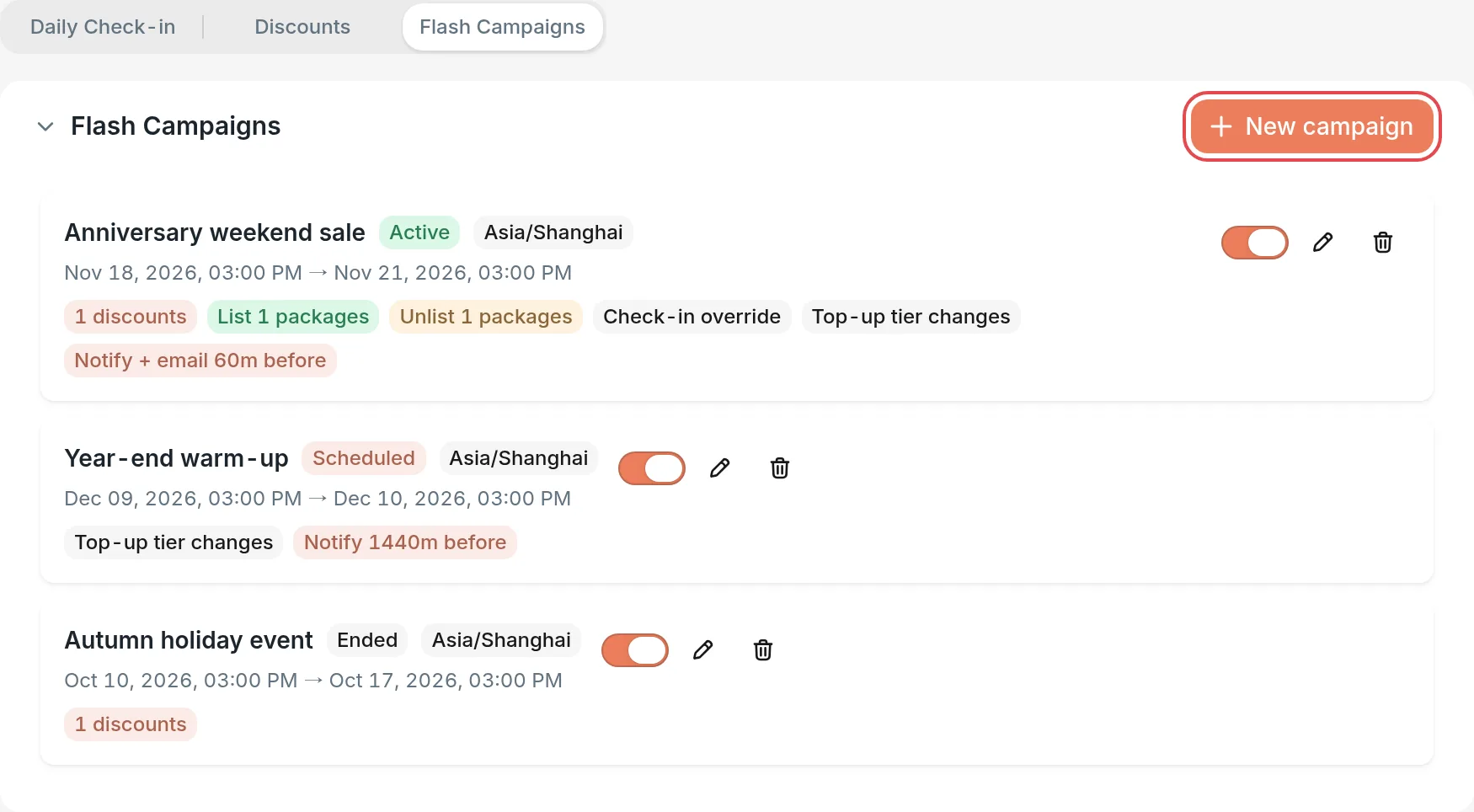 Flash campaigns: campaign list, status, and content tags
 CCHP
Schedule & Scope#
The panel has four tabs: Schedule & Scope, Discounts & Shelf, Daily Check-in, and Notifications. Start with Schedule & Scope:
When CCHP decides whether a package can be bought and at what price, the provider group, provider, key, and model conditions in Target scope & audience are not used; only the organization, team, user, and package conditions count.
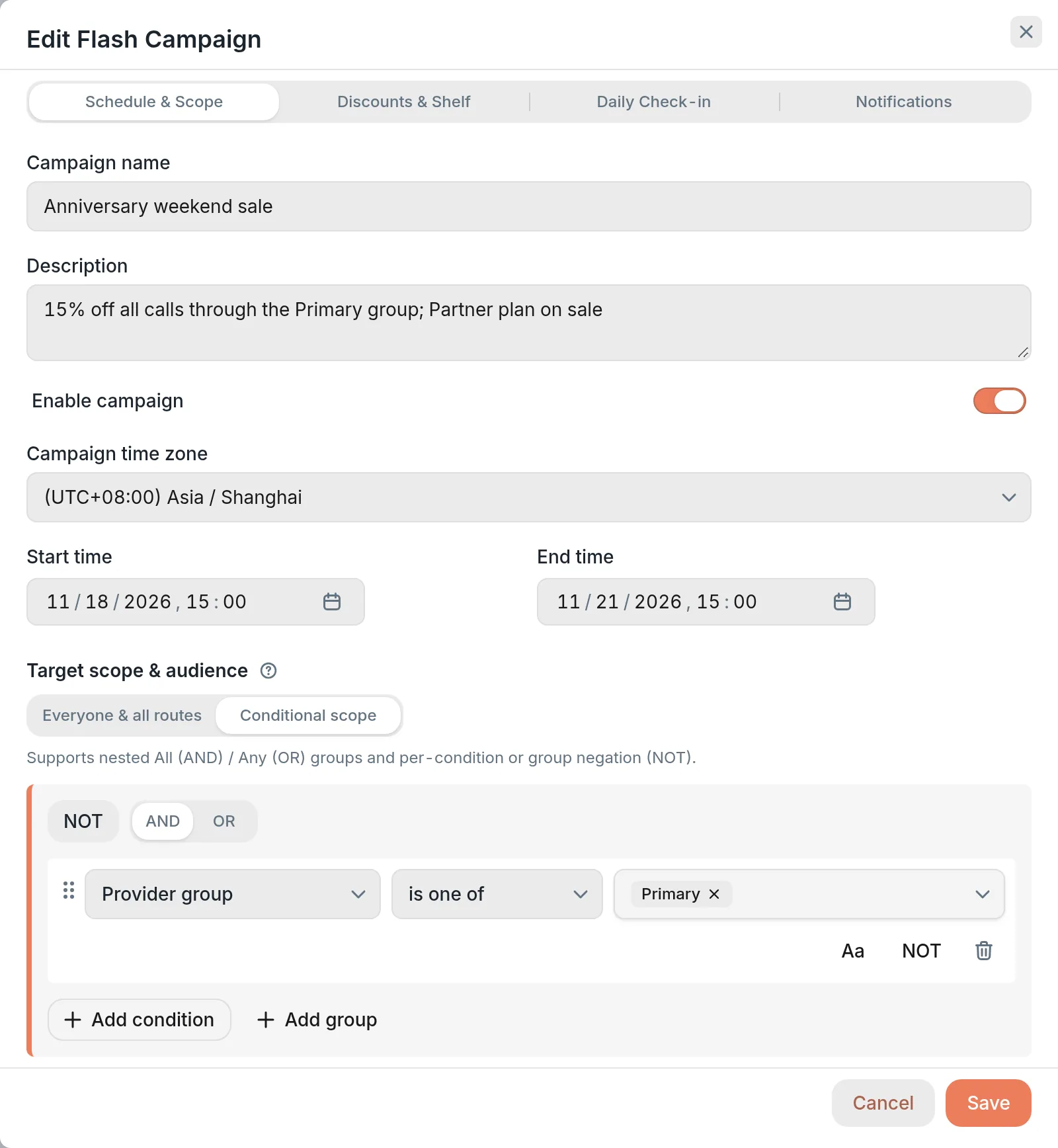 Edit Flash Campaign: time, time zone, and target scopeCCHP
Discounts & Shelf#
- Campaign discount rules: click New discount to add discounts that apply only during the campaign; the fields are the same as in Discount rules. Campaign discounts multiply after all regular discounts. If a regular rule with Stop matching lower rules matches, campaign discounts are not used.
- Temporarily list packages during campaign: the selected packages are listed for matching users during the campaign; hidden packages can be opened for a limited time this way.
- Temporarily unlist packages during campaign: the selected packages don’t appear in these users’ purchase window during the campaign. Users who already hold them keep using them.
- Temporarily unlisted regular tiers: the selected regular top-up tiers are hidden during the campaign.
- Promotional top-up tiers to list: click Add promotional tier and fill in the amount and Discount %. These tiers appear in the top-up window only during the campaign.
The campaign’s listing and unlisting take precedence over a package’s own Listed switch and over team override visibility.
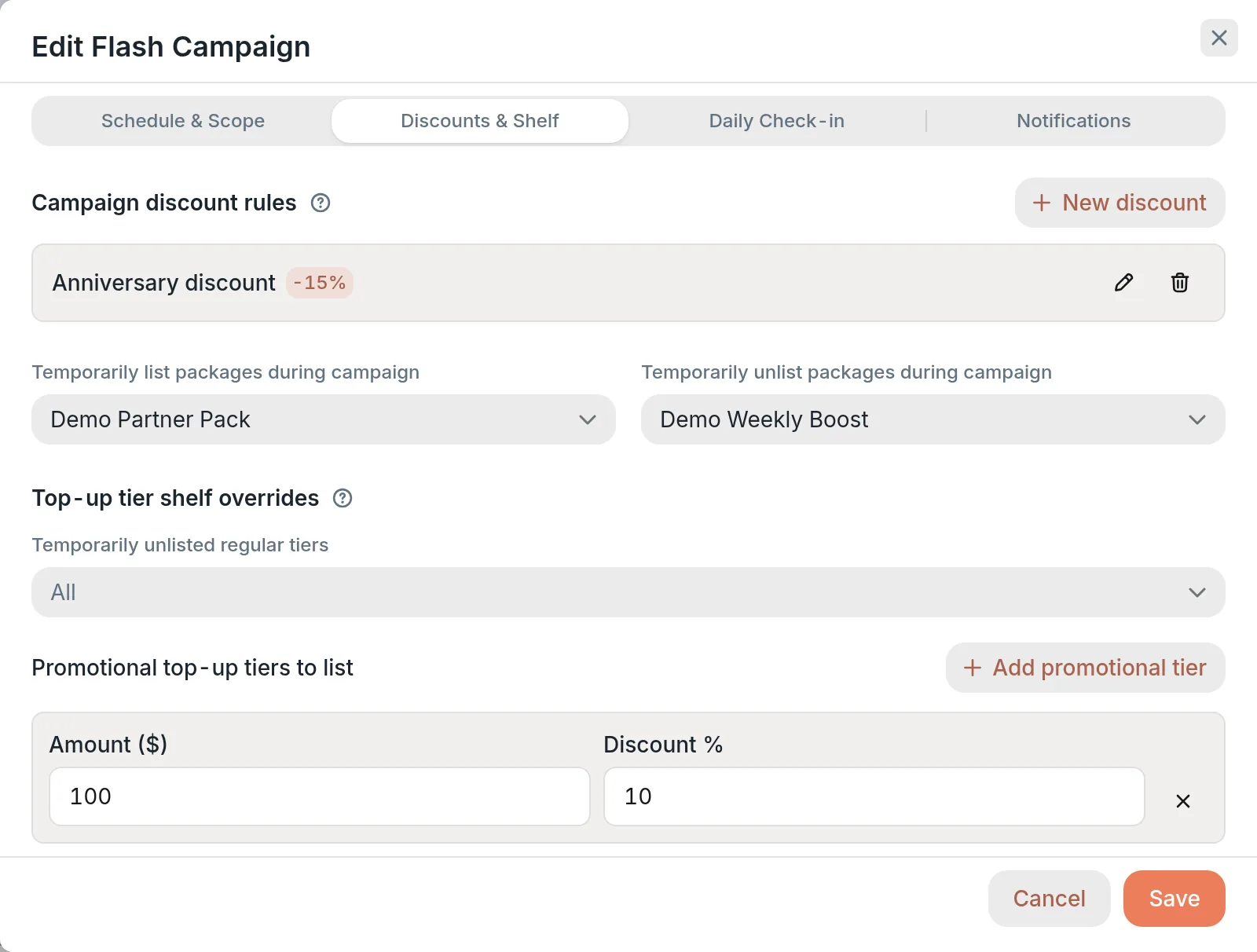 Edit Flash Campaign: campaign discounts and package and top-up tier shelf changesCCHP
Daily Check-in#
Turn on Override daily check-in parameters during campaign to grant check-in rewards with these settings during the campaign:
- Enable daily check-in: whether check-in is open during the campaign.
- Activity name: shown on the check-in button and in reward records; when empty, the campaign name is used.
- Minimum reward, Maximum reward, and Reward distribution: see Daily check-in.
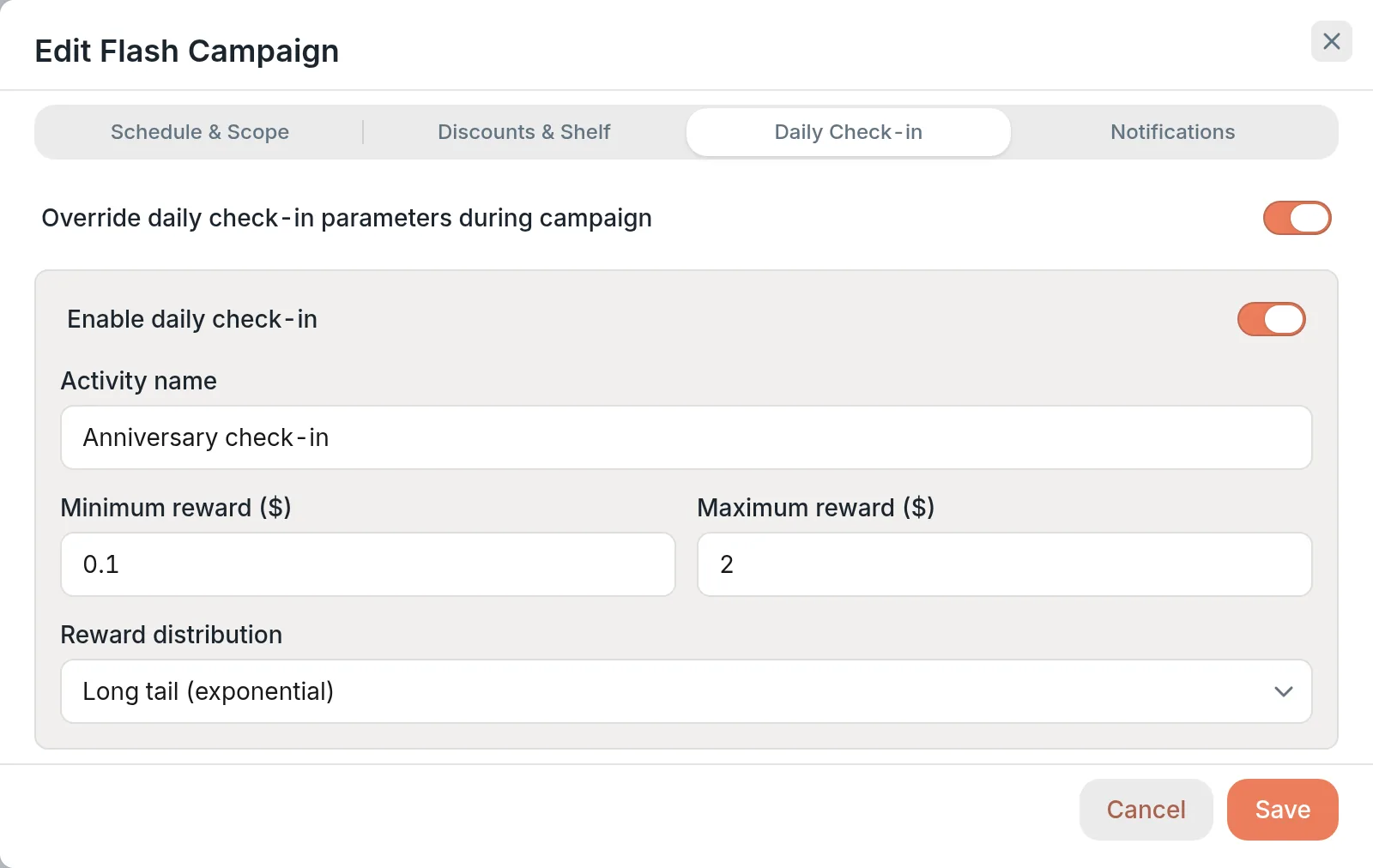 Edit Flash Campaign: check-in settings during the campaignCCHP
Notifications#
The in-console notification is shown only to the selected users.
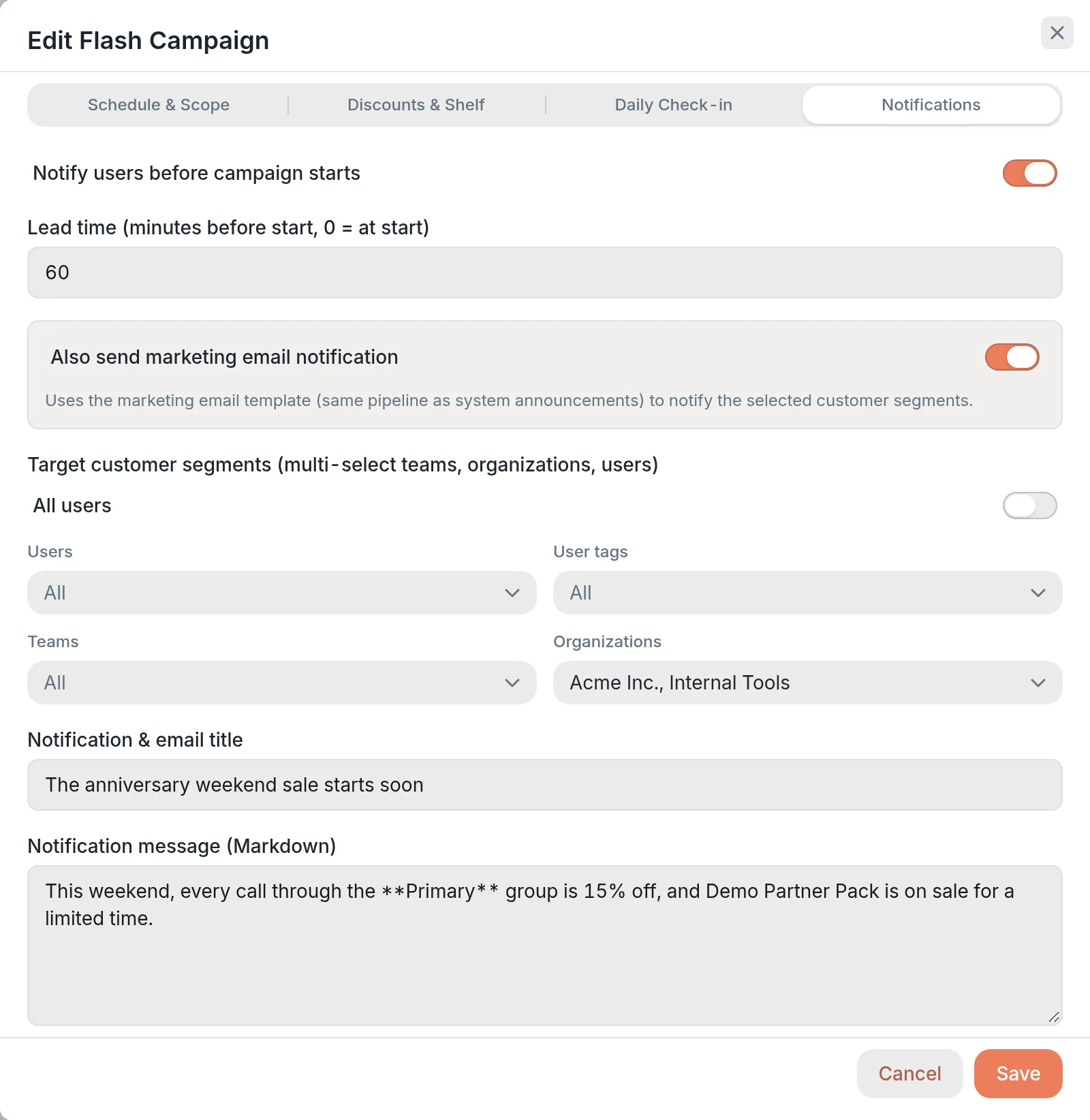 Edit Flash Campaign: notification time, audience, and contentCCHP
Save#
Click Save.
Result: the page shows Flash campaign created. At the start time the campaign takes effect and its status becomes Active; if notifications are on, they go out the set number of minutes before.
Edit, disable, and delete#
- Edit: click the edit icon on the campaign row, make changes, and click Save. Notifications that haven’t gone out are rescheduled with the new time, audience, and content.
- Disable: turn off the switch on the campaign row. The campaign stops taking effect and shows Disabled; when you turn it back on, it follows its original start and end times.
- Delete: click the delete icon on the campaign row and confirm. The campaign is removed, and notifications and emails that haven’t gone out are canceled.
Set campaigns for an organization or team#
Choose an organization or team in Effective scope in the upper-right corner, then create or edit a campaign. The organization or team gets its own campaign list and no longer follows the parent’s; click Restore inherited to go back to the parent’s campaigns, which also cancels notifications already scheduled.
In an organization scope, the notification audience defaults to that organization’s members, and All users is not offered.
Frequently asked questions#
The campaign has started, but users don’t see the listed package#
Check in order:
- Whether the campaign is enabled, and whether the start time, read in the Campaign time zone, has passed.
- Whether the user matches Target scope & audience.
- Whether the user’s organization or team has its own package catalog. With its own catalog, packages from the global catalog don’t appear in that organization or team; see Packages.
Why wasn’t the campaign discount applied?#
A regular discount rule with Stop matching lower rules matched first. Turn that rule’s switch off, or narrow its conditions.