Back to Operations settings6 min read
System security, visitor IP, and human verificationv1.0.12+
Diagnose reverse-proxy and Cloudflare CDN chains with the client IP inspector, manage the built-in auto-updating IP location database, configure automatic IP blocking (20028) and threat intelligence, and configure Cap PoW and cloud human verification per action.
CCHP centralizes ingress security under Administration → System Management → Security (/admin/security) and Human Verification (/admin/human-verification): accurately detecting the real visitor IP behind multi-layer reverse proxies or CDNs, resolving IP geolocation and proxy traits, automatically blocking abusive IPs with repeated authentication failures, and protecting sensitive actions such as sign-in, sign-up, and key reveal with human verification.
Client IP detection and live inspector v1.0.15+#
If CCHP runs behind Nginx, Caddy, Traefik, Cloudflare, or a cloud load balancer, you must configure client IP detection properly—otherwise request logs, audit logs, and IP blocking only see the reverse proxy’s internal address.
Detection methods and ordered headers#
Configure these core settings in Administration → System Management → Security → Client IP (shared by both the data-plane LLM endpoints and the control plane):
IPs this request carries (client IP inspector) v1.0.15+#
The IPs this request carries inspector right below the form dissects the live HTTP request that loaded the page, listing the direct peer and every hop in every IP-bearing header (with country flag, location, and network type) and comparing the resolved visitor IP side by side With the saved settings versus With the settings being edited:
- Click Add Cloudflare ranges to add Cloudflare’s published edge CIDR ranges to your trusted proxies in one click.
- On rows belonging to your private proxies or front servers, click Trust
<network>(automatically suggests/16or IPv6/64for private addresses,/32or/128for public addresses). - On the header or hop carrying the real visitor IP, click Read this header or This is the visitor to populate the draft form above. Confirm the preview looks right and click Save at the bottom.
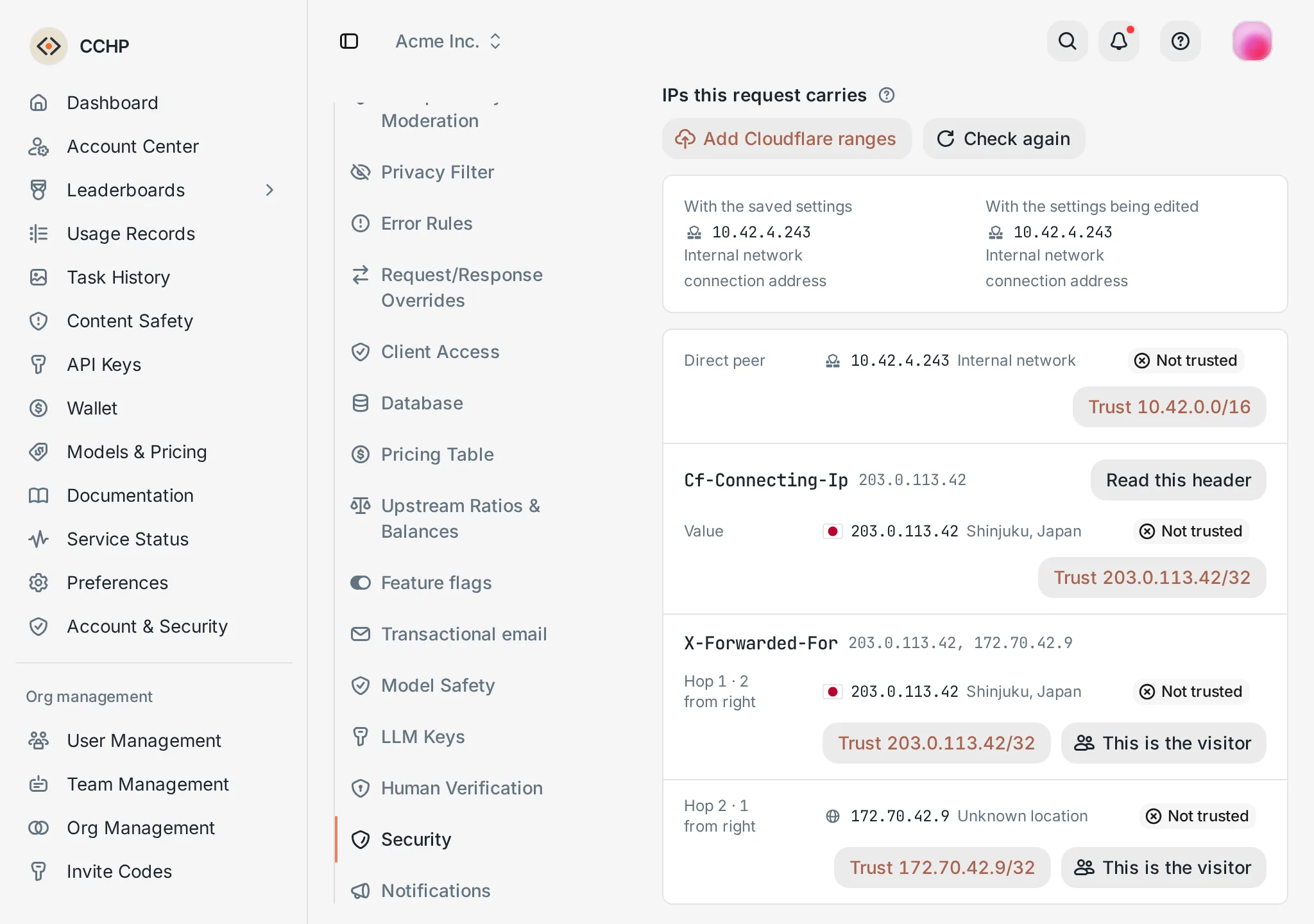 Client IP detection: strategy form, IPs this request carries hop inspector, and one-click trust actions
 CCHP
On a fresh installation, you can also check I use Cloudflare CDN during the Visitor IP step right after creating the first organization in the setup wizard. See Install with Docker Compose.
Built-in IP location database v1.0.15+#
Manage the built-in MaxMind DB (.mmdb) geolocation database in the IP location database section on the Security page. Every console and gateway replica shares the same database:
- Automatic updates: Enabled by default (
geoip.auto_update_enabled), checking the configured download source (geoip.maxmind_url) every24h(geoip.update_interval) by default; the file is validated before switching over. - Update now: Click Update now to pull the latest database immediately and view the last update timestamp and status.
- Console-wide display: Once ready, every IP in Request logs, tracing, and leaderboards, request details, audit logs, Account & Security sign-in history, and User Management shows a country flag, country/city, and proxy indicator. Click any IP to open a detail drawer with location, ASN provider, IP type (residential/hosting/CDN/anonymous), and proxy traits (Tor, VPN, public proxy, residential proxy, and more).
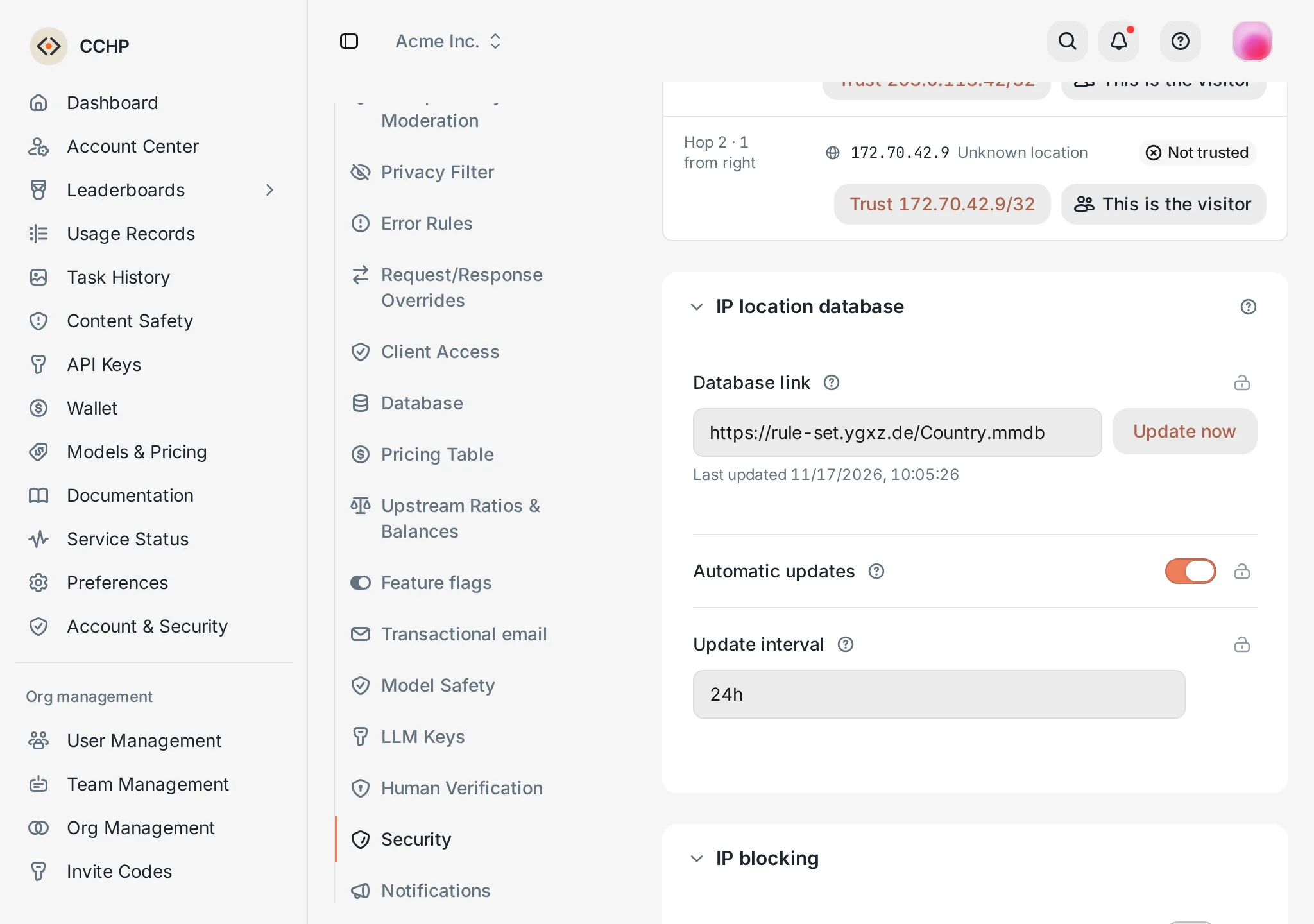 IP location database: automatic update interval and manual Update nowCCHP
Automatic IP blocking and threat intelligence#
Use the IP blocking section to stop brute-force probing and credential stuffing by client IP. It is off by default; turn it on only after Client IP detection resolves your real visitor IP instead of a loopback or cluster-internal address:
- Auto-block rules: When a single client IP’s failed authentication attempts within the counting window (
ip_blocklist.window_seconds, default60seconds) reach the threshold (auto_block_threshold, default100), the gateway blocks it automatically for the configured block duration (auto_block_duration_seconds, default1800seconds). - Client error code: Requests from a blocked IP are rejected immediately by the gateway with error code
20028. - Built-in safeguards: Loopback addresses, trusted proxy ranges, cluster-internal ranges, and LAN ranges under reduced-security deployments are never blocked, preventing accidental proxy lockouts.
- Threat intelligence integration: Under Threat intelligence, connect GreyNoise, AbuseIPDB (with configurable minimum abuse confidence
threat_intel_min_score, default75), or Cloudflare (account ID and API key) to block known malicious IPs proactively. - Blocked IPs and unblocking: The Blocked IPs list below shows all currently blocked addresses, the reason (authentication failures or threat-intel source), and expiration time. Search by IP and click Unblock to clear the block and reset its failure counter across all nodes within 1 second.
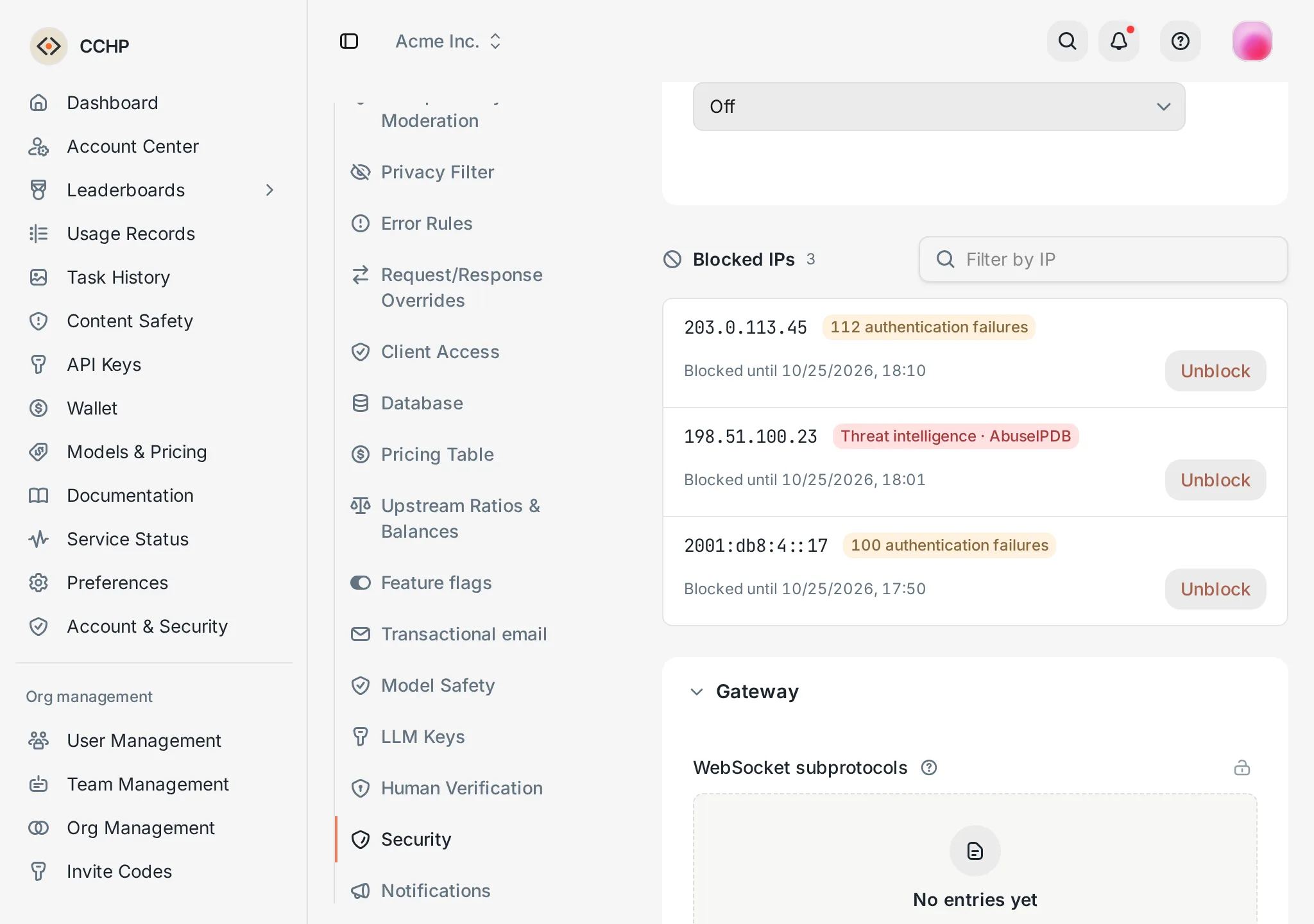 IP blocking: auto-block thresholds, threat intelligence providers, and Blocked IPs listCCHP
Gateway security and outbound address restrictions#
- Gateway security options (in the Gateway section at the bottom of Security): Configure allowed WebSocket handshake subprotocols (
security.websocket.sec_protocols), the security audit queue overflow policy (fail_open/fail_soft/fail_closed), and the hold-identifier hash truncation length. - Outbound address restrictions: To prevent SSRF attacks, all outbound traffic—provider endpoints, webhook callbacks, icon fetching, and Enterprise SSO—is governed by Outbound address restrictions under Administration → System Management → Routing (private and loopback addresses are blocked by default; for LAN testing, see Reduced-security deployment (LAN testing)).
Human verification and protected actions#
Go to Administration → System Management → Human Verification (/admin/human-verification) to configure per-action human verification policies for high-risk endpoints:
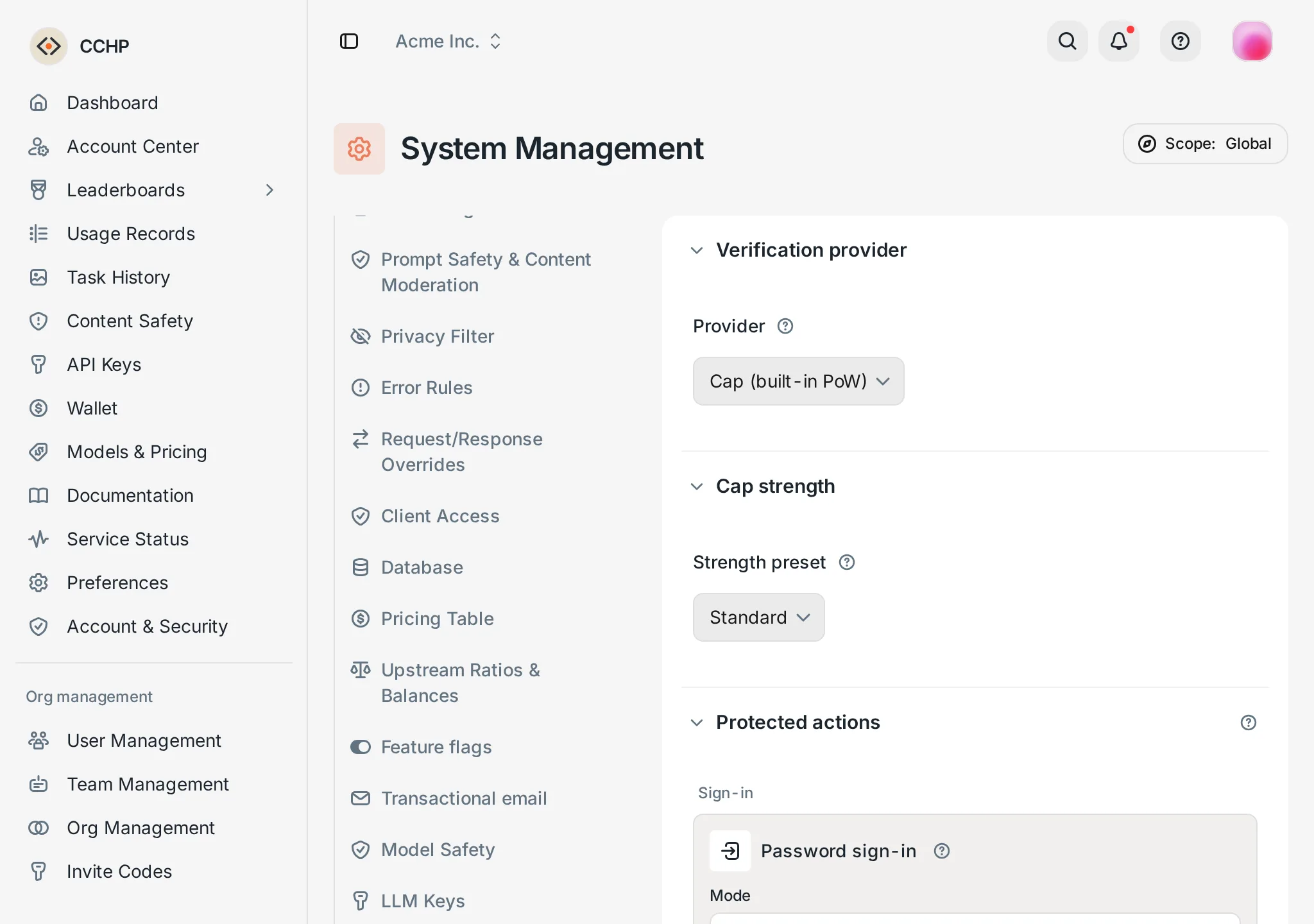 Human Verification: verification provider, Cap difficulty, and protected actions matrixCCHP
Verification providers and Cap difficulty#
- Cap (built-in PoW, default): Self-hosted proof-of-work verification with zero external dependencies and no third-party keys required—works seamlessly in intranet and offline environments. Choose Low, Standard, or High under Cap difficulty, or customize challenge count
c(1–1000), hex prefix difficultyd(1–16), and salt lengths(4–256). - Hosted cloud CAPTCHA: Supports Cloudflare Turnstile, hCaptcha, reCAPTCHA v2, reCAPTCHA v3, and Arkose Labs. Enter the Site key and Secret (stored encrypted and never shown again); if credentials are incomplete, CCHP falls back to built-in Cap automatically.
Protected actions matrix#
Actions are grouped into six categories—Sign-in, Sign-up, Verification codes, Account recovery, Token sign-in, and Other (such as creating LLM keys, revealing full keys, check-ins, and redeem codes). Each action can be configured independently:
- Mode: Off, Observe (issues a challenge and logs events without blocking), or Enforce (rejects requests that fail verification).
- When to verify: Every request or After failed attempts (
1–20consecutive failures before requiring verification). - If unavailable: Allow (fail-open) or Reject (fail-closed).
- Method and difficulty: Inherit the global default above, or pick a specific Cap / cloud provider and difficulty level per action.
Verification activity at the bottom displays the count of enabled policies, recent pass/fail and fail-open counts, and recent verification events with Request IDs.
Frequently asked questions#
Why does enabling IP blocking warn that “The gateway sees an address inside the deployment”?#
This means the direct connection seen by the gateway comes from a reverse proxy or a Kubernetes/Docker internal network, and the real visitor IP is not yet being extracted from forwarding headers. Use IPs this request carries to trust your proxy range and pick the header carrying the visitor IP, confirm With the settings being edited shows your real public IP, save, and then enable IP blocking.
What if an admin accidentally triggers an IP block on themselves?#
Sign in to the console from a different egress IP, search for the blocked address under Security → Blocked IPs, and click Unblock. If your office egress IP was blocked and you have no backup network, access restores automatically once the configured block duration expires.