Back to Organizations vs. teams5 min read
Permissions and custom roles
Learn how CCHP's built-in roles and privilege ranks work, create and maintain custom organization roles, add or remove members directly in role details, control whether organization admins can view members' request content, and use the System permission center and Identity Diagnostics to repair drift.
CCHP uses a multi-tenant RBAC model powered by Casbin and privilege ranks (RoleRank). Beyond the built-in organization and team roles, organization admins and owners can create fine-grained custom roles (such as “Provider Operator” or “Audit Viewer”) to define exact read/write boundaries for providers, models, limits, billing, and audit logs.
Open Org management → Permission Management (/app/org/permissions/roles) in the sidebar. Platform super admins also see the System permission center tab at the top of the same page.
Built-in roles and privilege ranks#
Every organization includes four system-managed preset roles (which cannot be deleted). Each role’s privilege rank governs management hierarchy—admins can only modify roles of members whose rank is lower than their own:
In addition, Platform super admin is a global identity on the account itself, independent of any single organization, granting access to the Administration menu and cross-organization management.
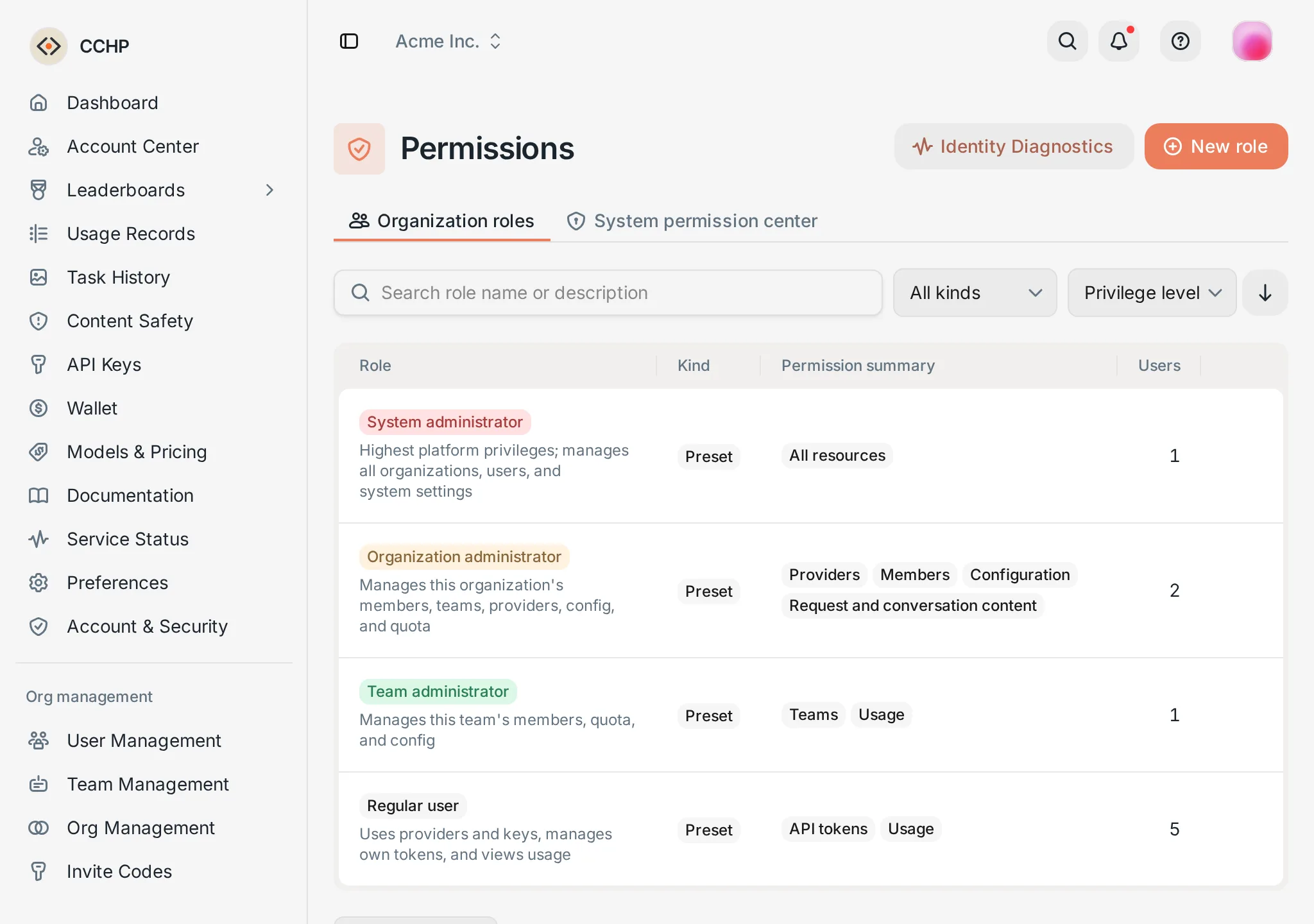 Permission Management: organization roles list, preset/custom filters, and Identity Diagnostics entry
 CCHP
Manage custom roles and member bindings#
Under Permission Management → Organization roles, you can search by name, filter by type (Preset / Custom), or sort by Privilege level, Name, or User count.
Create a custom role#
- Click New role in the top-right corner and enter a Role name and Role description. Custom roles cannot share a name with a system preset role v1.0.15+.
- Open the new role’s detail page, check the allowed actions grouped by resource, and save.
- All custom roles use a fixed custom rank; a member’s effective permissions combine their built-in organization identity with their bound custom role through the backend Casbin policies.
Manage role members directly v1.0.15+#
Click any custom role to open its detail page (/app/org/permissions/roles/<roleId>). Besides editing permission checkboxes, you can manage bindings directly in the Members section:
- Click Add users to search organization members by name or email and assign them to the role.
- Click Remove from role on a member’s row to unbind them; the member immediately loses permissions granted by that role while keeping their built-in organization identity.
- Each member can hold at most one custom role per organization. Adding a member who already holds another custom role switches them to the new role.
- You must unbind every member from a custom role before deleting it; deletion cannot be undone.
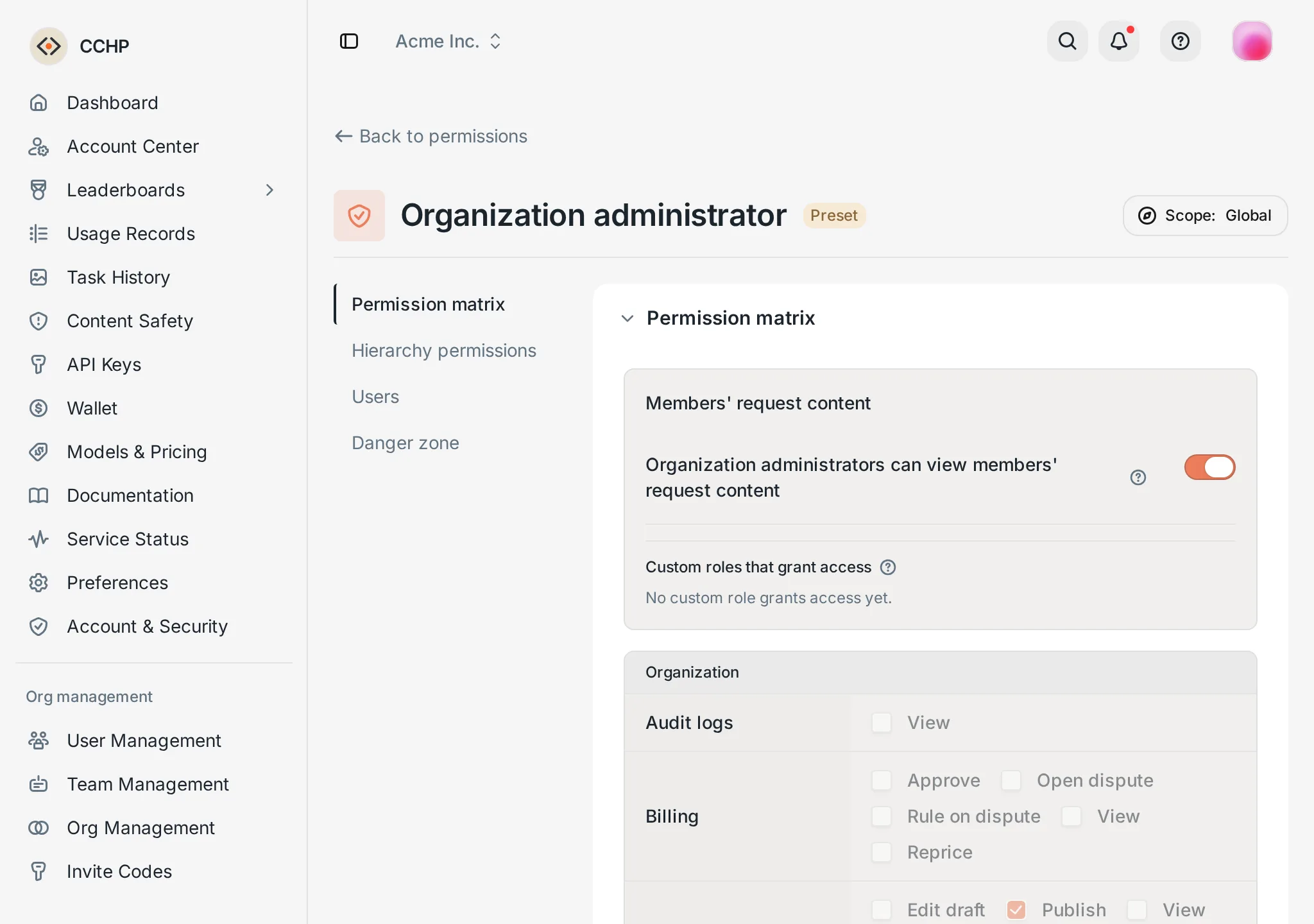 Role details: permission checkboxes by module and direct member assignmentCCHP
High-sensitivity permissions and security boundaries#
When assigning custom roles or reviewing organization admin access, pay special attention to these sensitive capabilities:
System permission center and Identity Diagnostics#
Platform super admins with platform-level identity:read permission can switch to System permission center (/app/org/permissions/center) from the top tab bar in Permission Management to audit and inspect the backend authorization model read-only:
- Roles and Casbin Policies: Inspect every backend-registered system, organization, and team role, its rank, the resource-action catalog, and whether each rule supports resource-ID scoping.
- Permission matrix: View the cross-tabulated matrix of allowed actions per role across
system,org, andteamscopes (higher rank wins on conflicts). - Identity Diagnostics and repair: Click Identity Diagnostics in the top-right corner of Organization roles to scan for drift between organization memberships and Casbin policies. If mismatches appear, click Preview repair to inspect affected users and the exact change plan (previews carry a short expiry), then click Apply repair to commit local policies and broadcast cache invalidation to all other cluster nodes.
Frequently asked questions#
Why can’t I delete a custom role?#
CCHP requires unbinding all members referencing a custom role before deletion. Open the role’s detail page, click Remove from role for every member in the list, and then click Delete role at the bottom. Preset roles are managed by the system and cannot be deleted.
Why can’t an organization admin open members’ request content?#
Check whether the organization owner turned off “Organization administrators can view members’ request content” v1.0.15+. Turning it off revokes request_archive:read and request_archive:export from the built-in organization admin role. To let specific on-call admins keep access, assign them a custom role that grants request-content read access.
Can one user hold two custom roles at the same time?#
Within the same organization, each user can be bound to at most one custom role. If a member wears two hats (for example, managing providers and viewing audit logs), create one custom role combining both permission sets and assign it to that member.