Back to Create an LLM key5 min read
Account security, two-step verification, and sessions
Configure your password, TOTP authenticator, recovery codes, and passkeys in Account & Security, understand step-up verification, manage active sessions and paginated GeoIP sign-in history, and link external accounts or bind an inviter.
Your sign-in account works across every organization on the platform. Open Account & Security (/app/account/security) in the sidebar to manage your profile, sign-in credentials, two-step verification, active sessions, linked accounts, organization memberships, and management API tokens v1.0.12+.
If you sign in to the console with a management API token, the Account & Security menu and page are hidden for security isolation. Sign in with a regular user session to update security settings.
Login & security: password, authenticator, and passkeys v1.0.1+#
Open Account & Security → Login & security (/app/account/security?tab=login) to configure your password and multi-factor authentication (MFA):
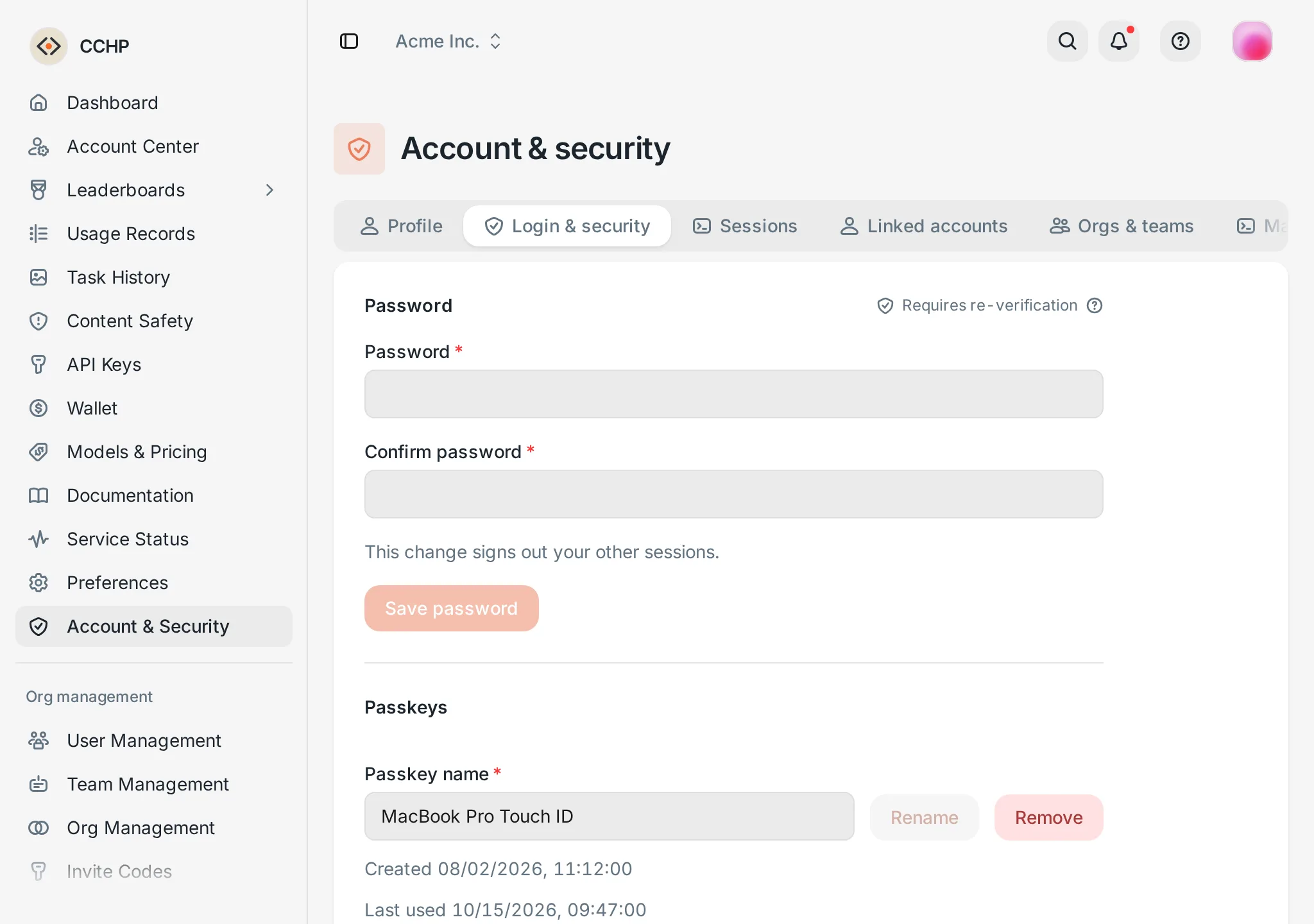 Account & Security: password, TOTP authenticator, recovery codes, and passkeys
 CCHP
Authenticator app (TOTP) and recovery codes#
- Under Two-step verification, click to enable an authenticator app, then scan the QR code (or enter the setup key manually) in 1Password, Bitwarden, Google Authenticator, Apple Passwords, or any TOTP app.
- Enter the 6-digit code generated by the app to complete enrollment.
- Save the one-time Recovery codes offline right away. If you lose your phone or cannot generate codes, use a recovery code to sign in or reset your authenticator. You can regenerate recovery codes at any time, which immediately invalidates previous codes.
Passkeys (WebAuthn)#
Under Passkeys, click to register your device’s fingerprint, Face ID, hardware security key (such as a YubiKey), or password manager as a passkey:
- Register multiple passkeys per account with custom device names so you can identify and remove individual keys easily.
- Use passkeys for fast/passwordless sign-in as well as one-tap step-up confirmation and revealing full LLM keys.
Step-up verification and automatic sign-out on security changes#
Before sensitive account actions—changing your email or password, toggling two-step verification, regenerating recovery codes, revealing a full LLM key, or deleting your account—if more than 10 minutes have passed since your last strong authentication, CCHP opens the Verify your identity dialog and asks you to confirm with a passkey, authenticator app, recovery code, current password, or email verification code.
After you change your password, modify two-step verification, or remove a security factor, every other signed-in device is signed out automatically v1.0.15+ so old sessions cannot remain active if credentials were compromised. Local accounts created directly by an administrator in no-SMTP deployments can sign in with email and password and enable optional two-step verification, but self-service password reset by email and email-code sign-in remain disabled by default until the user verifies a real email address once mail delivery is configured v1.0.16+.
Active session management v1.0.15+#
Switch to Account & Security → Sessions (/app/account/security?tab=sessions) to review all currently active sessions at the top of the page:
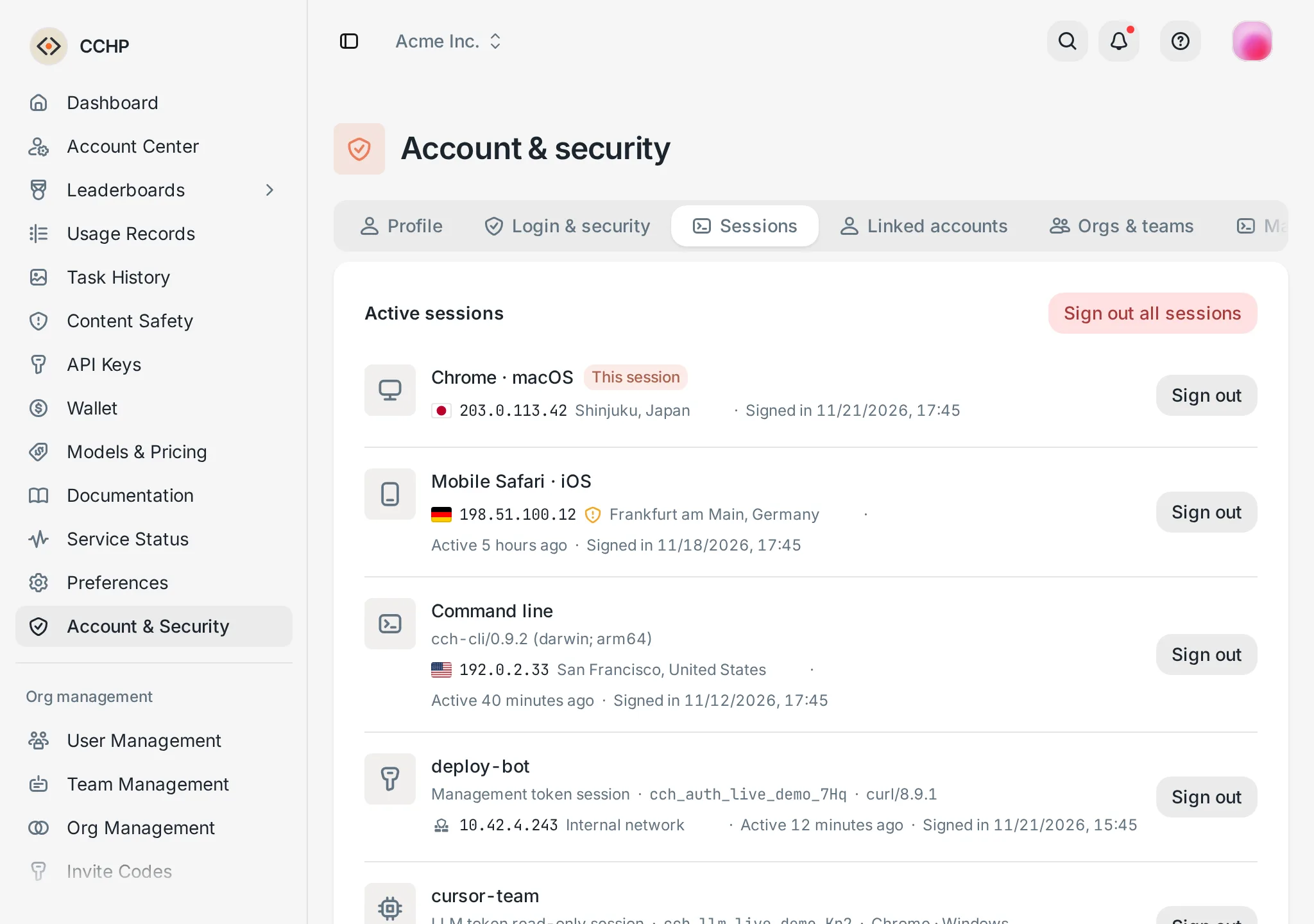 Active sessions: single-row display of device, source IP, activity status, and one-click sign-outCCHP
- Compact single-row layout v1.0.15+: Each session displays device/browser, source IP (with country flag and location summary), last active time, and sign-in time on one row. Your active browser is labeled This session.
- Single or full revocation: Click Sign out on any row to revoke that device immediately. If you suspect unauthorized access, click Sign out all sessions at the top right to clear every device at once (your current browser also signs out and returns to the login page).
Paginated sign-in history and IP geolocation v1.0.15+#
Below active sessions on the Sessions tab, Sign-in history lists every session ever issued for your account in reverse chronological order, including sessions that were signed out or expired:
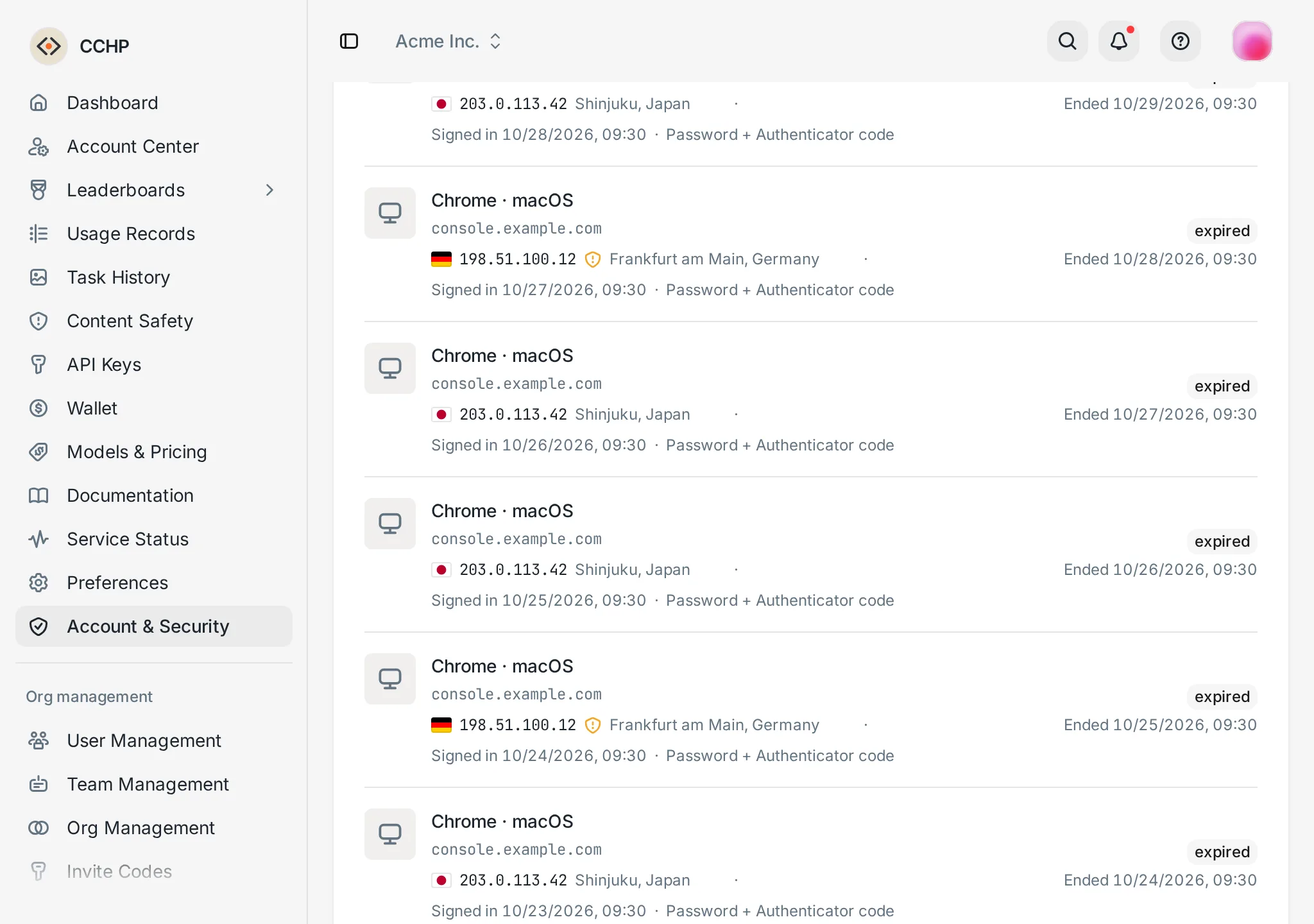 Sign-in history: paginated log, source IP country flags, and detail inspectionCCHP
- Each entry shows sign-in time, client device info, and source IP. When the built-in GeoIP database is enabled, the IP displays a country flag, country/city, and proxy indicator.
- Click any IP address to open its detail drawer and inspect geographic location, ASN provider, network type, and proxy/VPN status to spot unfamiliar sign-ins quickly.
Linked accounts and post-signup inviter binding#
Switch to Account & Security → Linked accounts (/app/account/security?tab=linked) to manage third-party sign-in links and referral attribution:
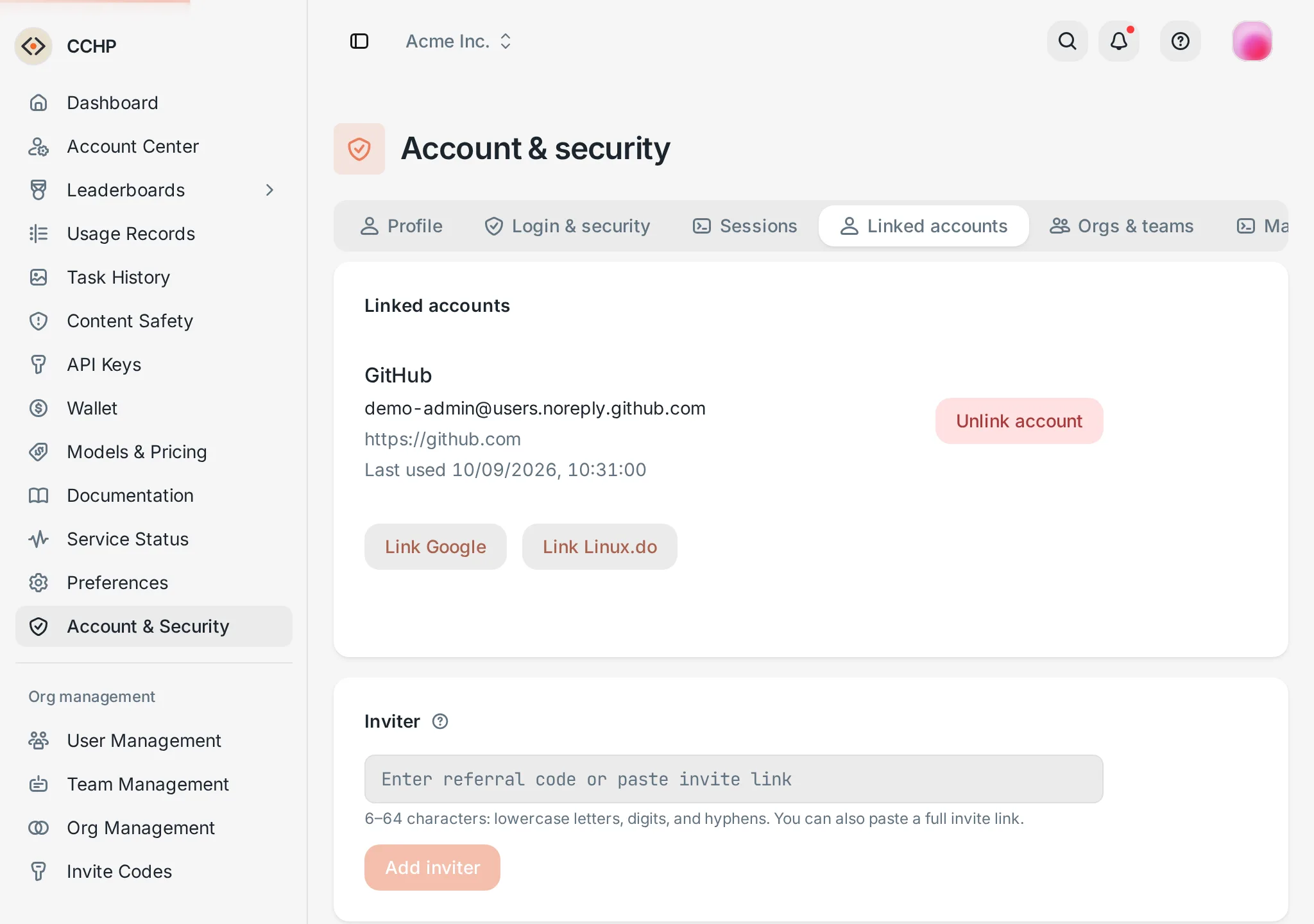 Linked accounts: third-party OAuth/OIDC links and post-signup inviter bindingCCHP
- Third-party account links: View, link, or unlink platform-enabled GitHub, Google, Linux.do, custom OIDC, or Enterprise SSO accounts. To prevent account lockout, unlinking requires at least one other usable sign-in method to remain on your account.
- Bind an inviter after sign-up v1.0.10+: If you did not enter a referral link or code during registration, signed-in users without an inviter automatically see a Confirm inviter binding dialog when opening a
/r/<code>referral link v1.0.16+. You can also enter or paste a referral code manually under Inviter at the bottom of this page using a monospace input matching wallet suffix length rules (no longer fixed to a 6-box OTP style) v1.0.16+. See Referral rewards.
Other tabs#
- Profile (
?tab=profile): Upload and crop your avatar, update your display name, and change your sign-in email. - Orgs & teams (
?tab=memberships): View all organizations and team roles you belong to, join a new organization with an invite code, and track pending join requests. - Management API tokens (
?tab=tokens): Create and revoke management API tokens. See Create a management token. - Delete account (
?tab=danger): Permanently delete your account after step-up verification.
Frequently asked questions#
What if I replaced my phone and can’t get codes from my authenticator app?#
Choose Recovery code on the two-step verification prompt to sign in, then go to Account & Security → Login & security to bind an authenticator on your new device and generate fresh recovery codes. If you also lost your recovery codes, contact a platform super admin to verify your identity and reset MFA.
Why were my other computers and phones signed out after I changed my password?#
Starting in v1.0.15, changing high-risk security factors such as your password or two-step verification automatically revokes all active sessions except the browser you are currently using, preventing stale sessions from keeping console access.