Back to Operations settings3 min read
CLI clients and Device Flow
Register external CLI clients under Sign-in Methods, manage their enabled state and permission scopes, and understand OAuth 2.0 Device Authorization Flow browser approval and localhost development support.
When external command-line tools—such as the official cchp CLI or internal scripts and terminal tools—need interactive user sign-in to CCHP without copying management API tokens by hand, platform super admins can register and manage OAuth 2.0 Device Authorization Flow apps under Administration → Sign-in Methods → CLI clients (/admin/identity?tab=cli).
The legacy standalone pages /admin/identity/apps and /admin/identity/device-flow have been consolidated under Administration → Sign-in Methods (/admin/identity), organized into three tabs: Sign-in policy, Login providers, and CLI clients (visiting old URLs redirects automatically to the matching tab).
Manage CLI clients#
Open Administration → Sign-in Methods → CLI clients (/admin/identity?tab=cli) to view all registered Device Flow apps:
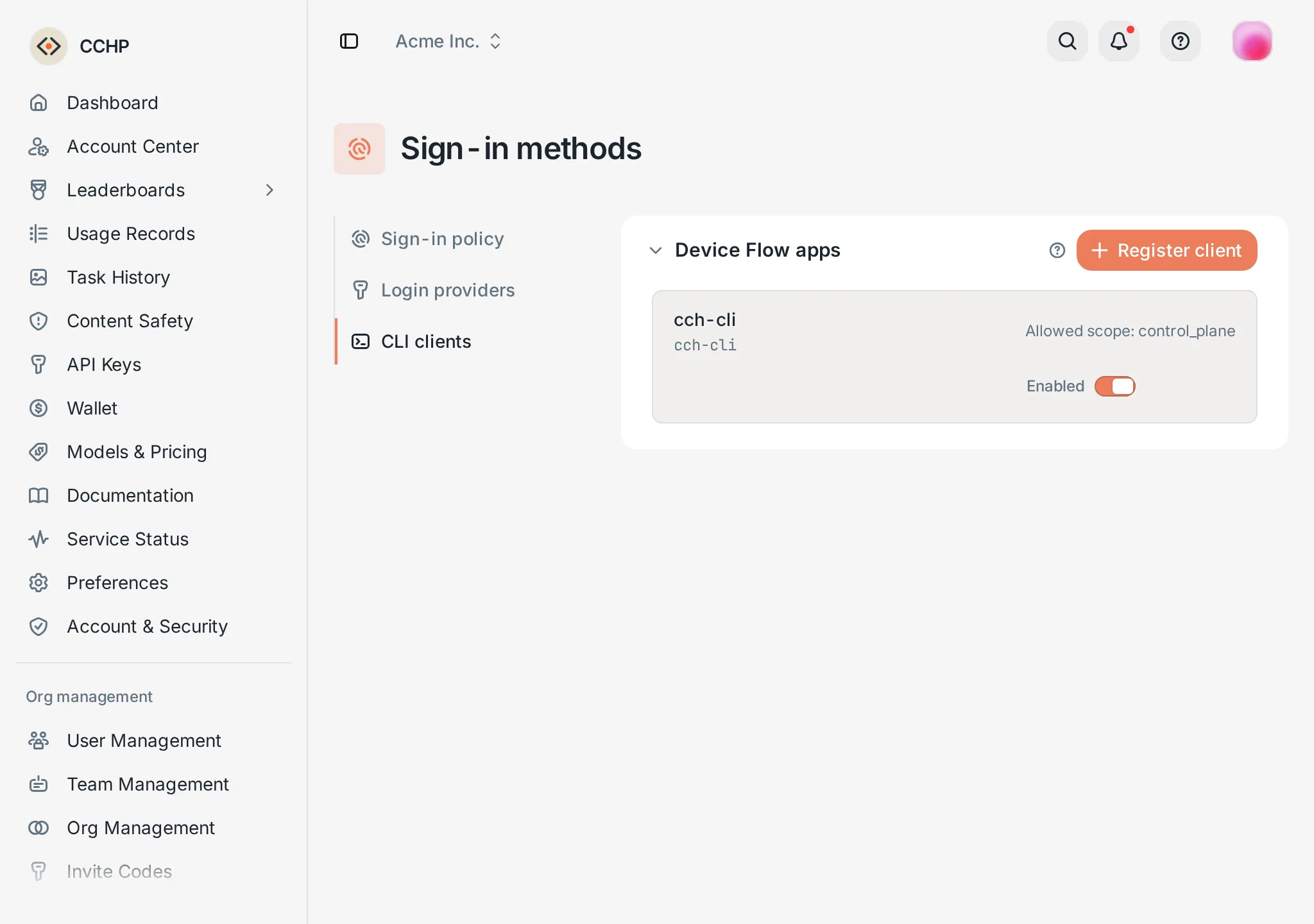 Sign-in Methods · CLI clients: registered Device Flow apps, client IDs, allowed scopes, and enable toggles
 CCHP
- Client list: Each row shows the app’s display name, its unique
client_id(displayed in monospace, with Copy client ID in the row menu), and its allowed Permissions (scopes). - Instant toggle and removal: Each row provides an inline enable toggle; turning it off immediately rejects new device authorization requests from that client (optimistically updated, rolling back with an error if the request fails). Use the row menu to Edit the display name or Delete retired clients.
Register a new client#
- Click Register client at the top right to open the drawer:
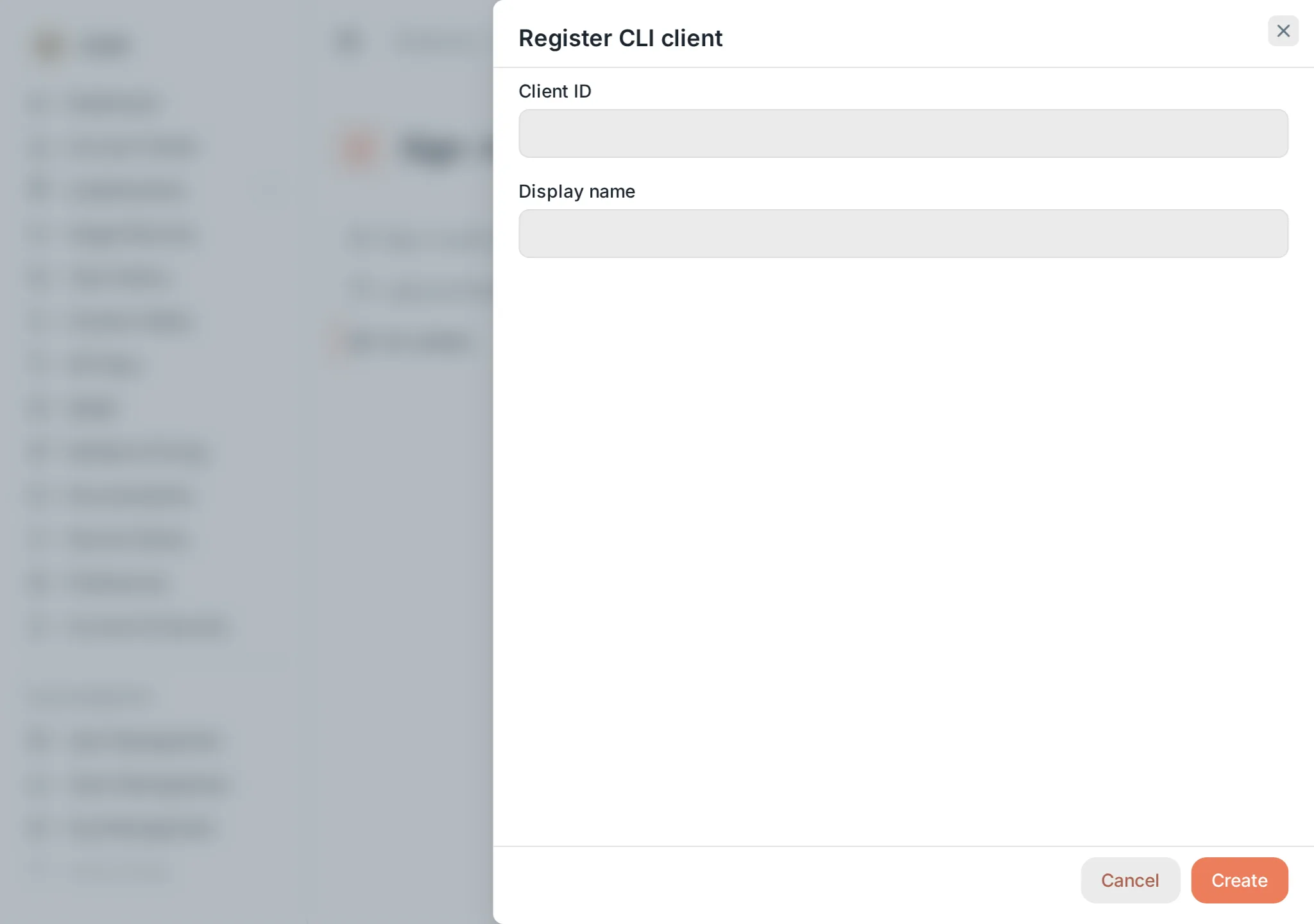 Register CLI client drawer: Client ID and Display name fieldsCCHP
- Enter the Client ID (letters, digits,
.,_, and-only;1–128characters; immutable after creation) and Display name (shown to users on the browser approval screen). - Click Create. The client can immediately initiate device authorization against this CCHP instance using that
client_id.
Device Flow sign-in sequence#
Registered CLI clients follow standard OAuth 2.0 Device Authorization Grant (RFC 8628) for interactive login:
CLI requests device authorization#
The terminal runs a login command (for example, cchp auth login) with its registered client_id. The control plane returns a short-lived User Code, Device Code, and browser verification URL (https://<console-domain>/device).
User verifies and approves in a browser#
The user opens /device in any browser signed in to CCHP (direct links with the code pre-filled are supported), confirms the code shown in the terminal, reviews the requesting CLI client name and Permissions, and approves.
CLI polls for a session token#
Once approved, the local CLI finishes polling, receives an access token, and saves it to the local credential store. Users never type passwords in the terminal, and sign-in works seamlessly with two-step verification (TOTP / Passkey) and Enterprise SSO accounts.
Scopes and localhost development support v1.0.1+#
- Least-privilege boundary: Tokens issued through Device Flow are capped to the intersection of the CLI client’s allowed
scopesand the approving user’s current organization/platform permissions. Admins can disable or delete a client at any time, and users can view or revoke issued sessions under Account & Security. - Local HTTP development support v1.0.1+: When developing or debugging custom CLI or OIDC clients locally, the control plane permits
localhost/127.0.0.1loopback addresses for development authorization and callbacks without requiring self-signed HTTPS certificates. Production clients must still authorize through the HTTPS console domain. - External login providers and OIDC/SAML federation: To let users sign in with GitHub, Google, custom OIDC, or enterprise SAML, configure them in the Login providers tab on this same page or under organization Enterprise SSO; see Set up login providers.
Frequently asked questions#
What if CLI login reports that the client doesn’t exist or is disabled?#
Ask a platform super admin to check Administration → Sign-in Methods → CLI clients, confirm that the client_id passed by the CLI matches the registered ID exactly (case-sensitive), and verify that the client’s enable toggle is on.
When should I use a CLI client (Device Flow) vs. a management API token?#
Use a CLI client (Device Flow) for interactive terminal work by real operators or developers—it avoids manually copying and rotating plaintext secrets and inherits MFA protection automatically. Use least-privilege, expiring management API tokens for CI/CD pipelines, cron scripts, and headless automation.